Skip to content

Theme

Get in touch
42 PDF Editor app icon
Coming soon to the App Store

42 PDF Editor

Read, mark up, fill, sign and rearrange PDFs

A PDF editor for iPhone and iPad. Highlight and draw, fill in a form, sign it, fix a line of text, move pages around, scan paper, and turn Word documents into PDFs and back, without an account and without uploading anything.

Coming soon on the App Store

Not out yet. Leave your email below and we'll send one message on launch day.

Version 1.0 · Coming soon

Fill it, sign it, send it back.

Open a PDF from Files or straight from another app, fill in its form fields, place your signature and share it on, all without leaving your phone. Paper, photos and Word documents become PDFs, and PDFs become Word documents. Every step runs on the device with Apple's PDFKit and Vision.

  • Annotate & draw
  • Fill & sign
  • Edit text
  • Reorder pages
  • Scan to PDF
  • PDF ⇄ Word
  • Works offline

App Information

Quick facts about 42 PDF Editor for iOS

DeveloperCS42
AvailabilityComing soon to the App Store
PriceFree
CategoryProductivity
CompatibilityiOS 17.0 or later · iPhone & iPad
LanguagesEnglish
Age Rating4+
In-App PurchasesNone
AccountNone needed
Data CollectedNone
CameraOnly for the document scanner
Works OfflineYes. Every tool runs on the device

About 42 PDF Editor

What is 42 PDF Editor?

42 PDF Editor is a PDF reader and editor for iPhone and iPad. It opens PDFs from the Files app, iCloud Drive or any other provider, lets you mark them up, fill them in, sign them and rearrange their pages, and saves the result back to the same file or to a new copy. Everything happens on the device, with Apple's own PDFKit.

Read more Show less

Most of what people need to do to a PDF is small: sign a form, fill in a few fields, fix a typo, take out a page, add the scan of a receipt. 42 PDF Editor puts those jobs on the phone you already have with you, with no account to create and no file to upload to a website first.

Signatures are drawn once and kept on your device, ready to place on the next document. Scans, photos and Word documents become PDF pages, and a PDF can go back out as a Word document, with scanned pages read by on-device text recognition.

One thing to know: Edit Text and Whiteout cover the original content and place new content on top. The original text is still inside the file underneath, so they hide text from view, not from search or copy. They are not a way to redact a document.

Key Features

Read

Continuous, page by page or sideways, with pinch to zoom, search with a result count, the table of contents and a page grid.

Mark Up

Highlight, underline and strike through text. Draw with a pen or highlighter, by finger or Apple Pencil, and add shapes, arrows and text boxes.

Fill and Sign

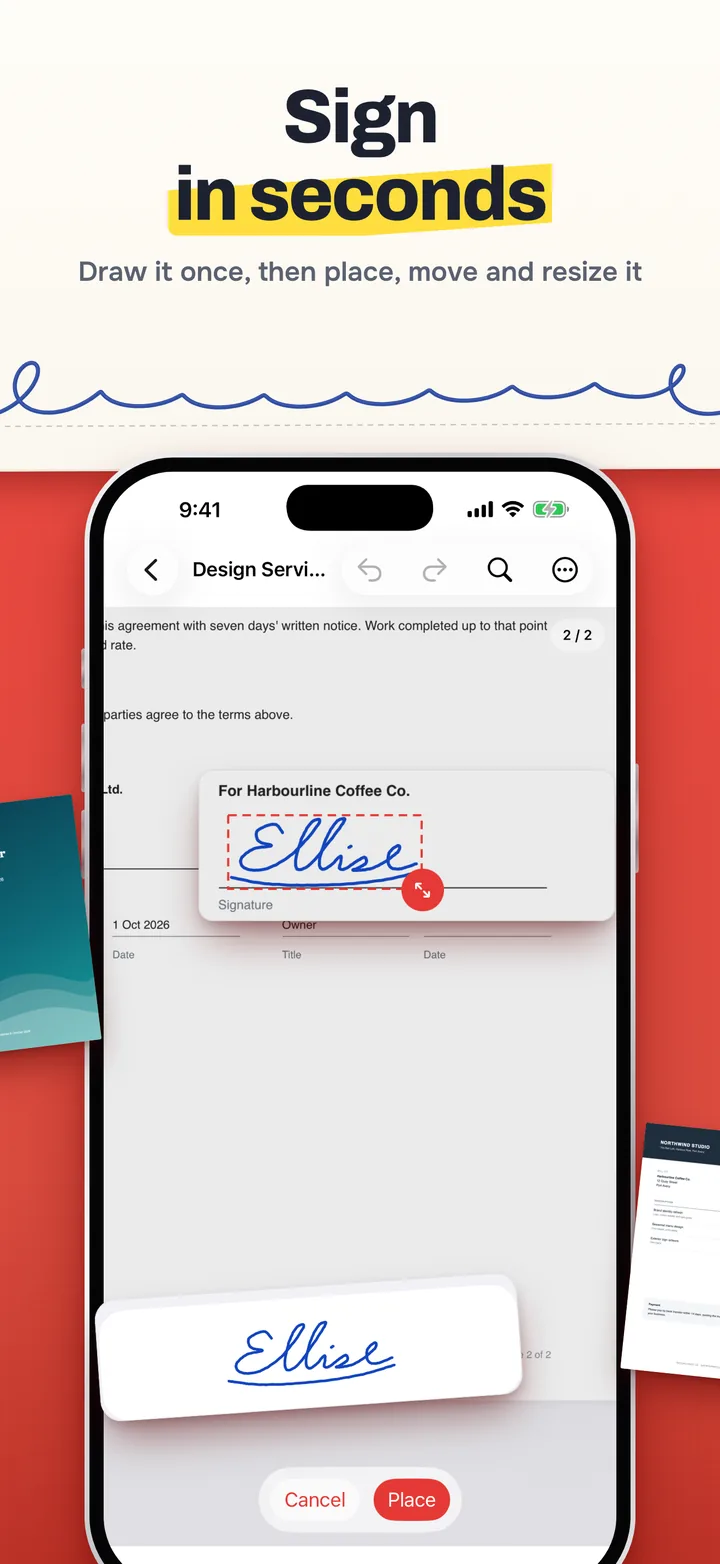
Type into a PDF's form fields. Draw a signature once, then place, move and resize it on any page. It stays sharp, because it is written as vector ink.

Edit Text

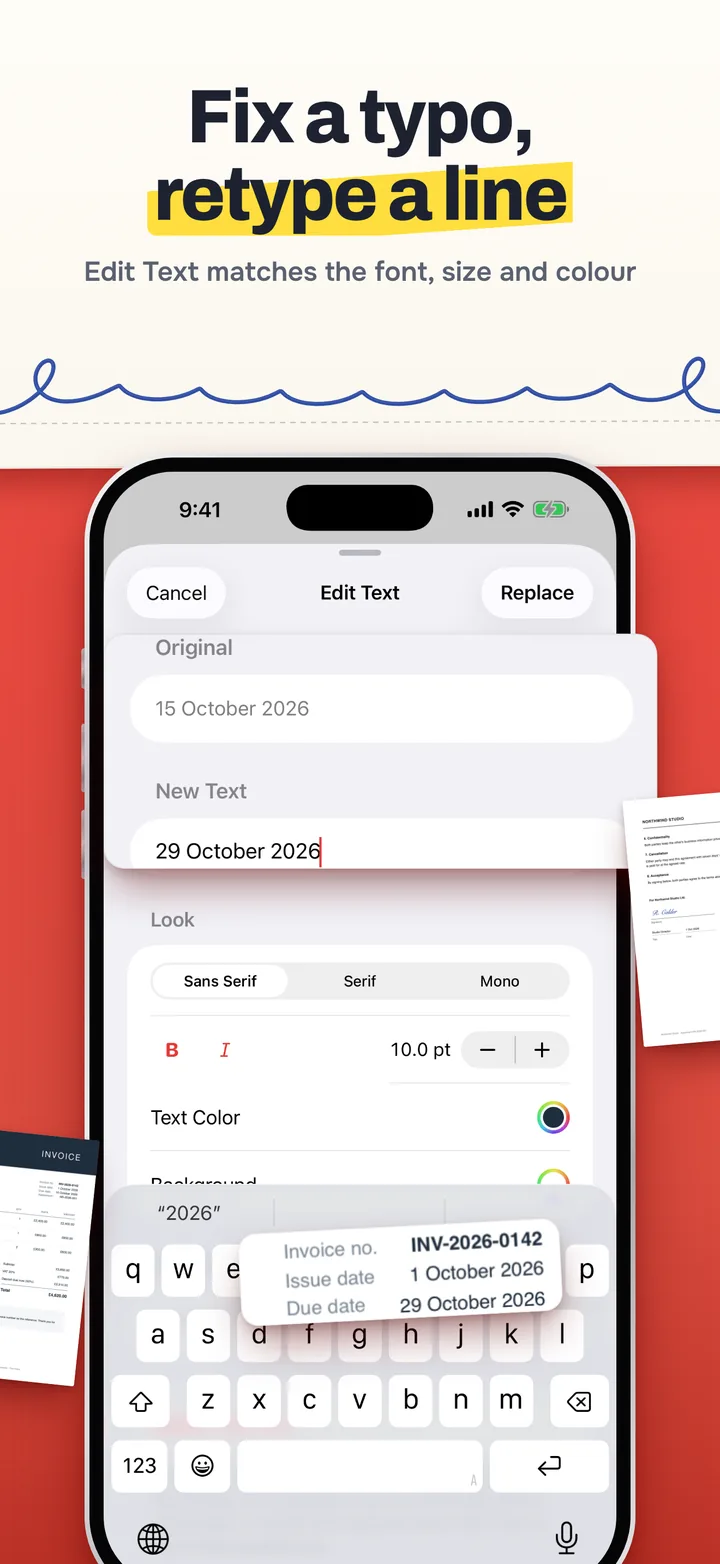
Tap a line and retype it. The font, size and colours are matched to the original and can be adjusted, and you can change or undo it later.

Pages

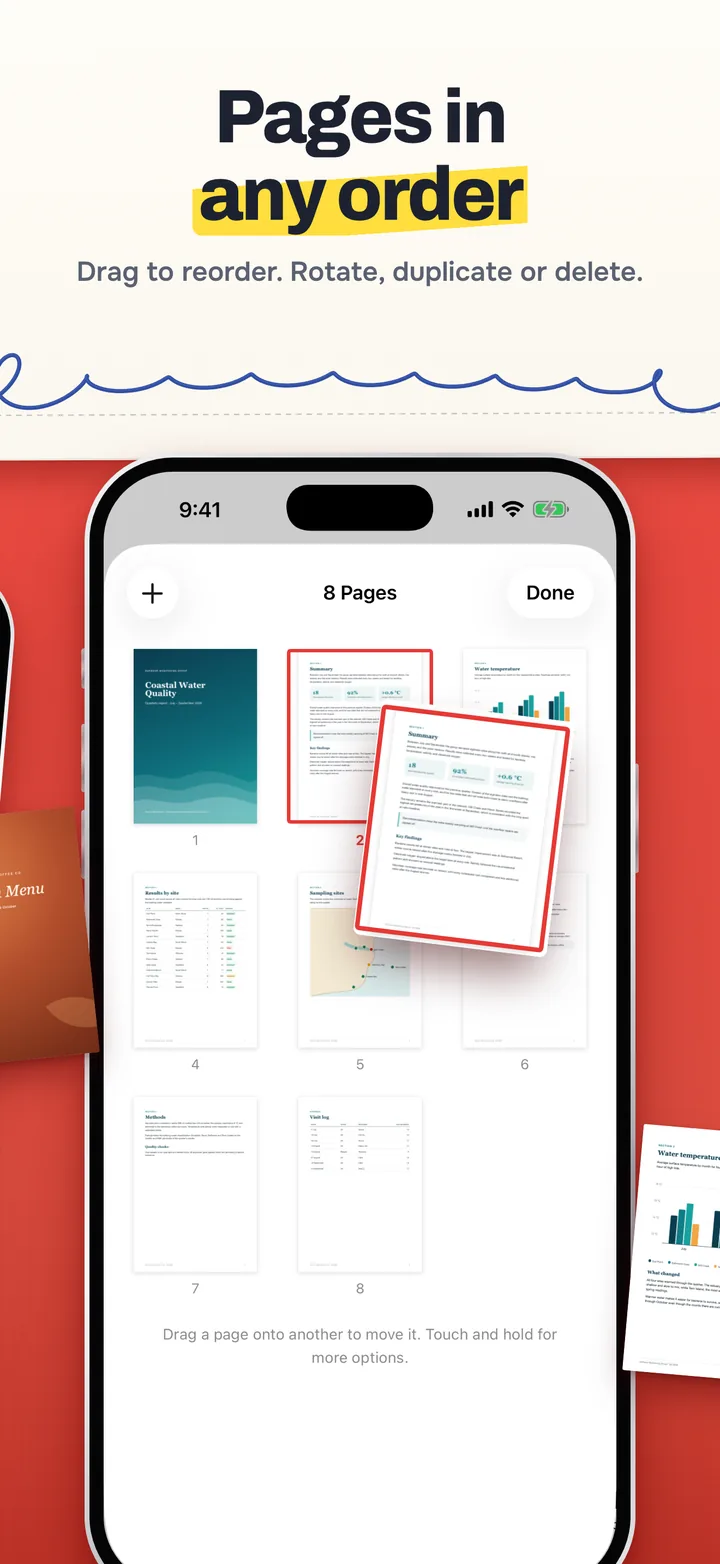
Drag to reorder, rotate, duplicate or delete. Insert blank pages, pages from another PDF or Word file, scans or photos, and share a single page.

Scan and Create

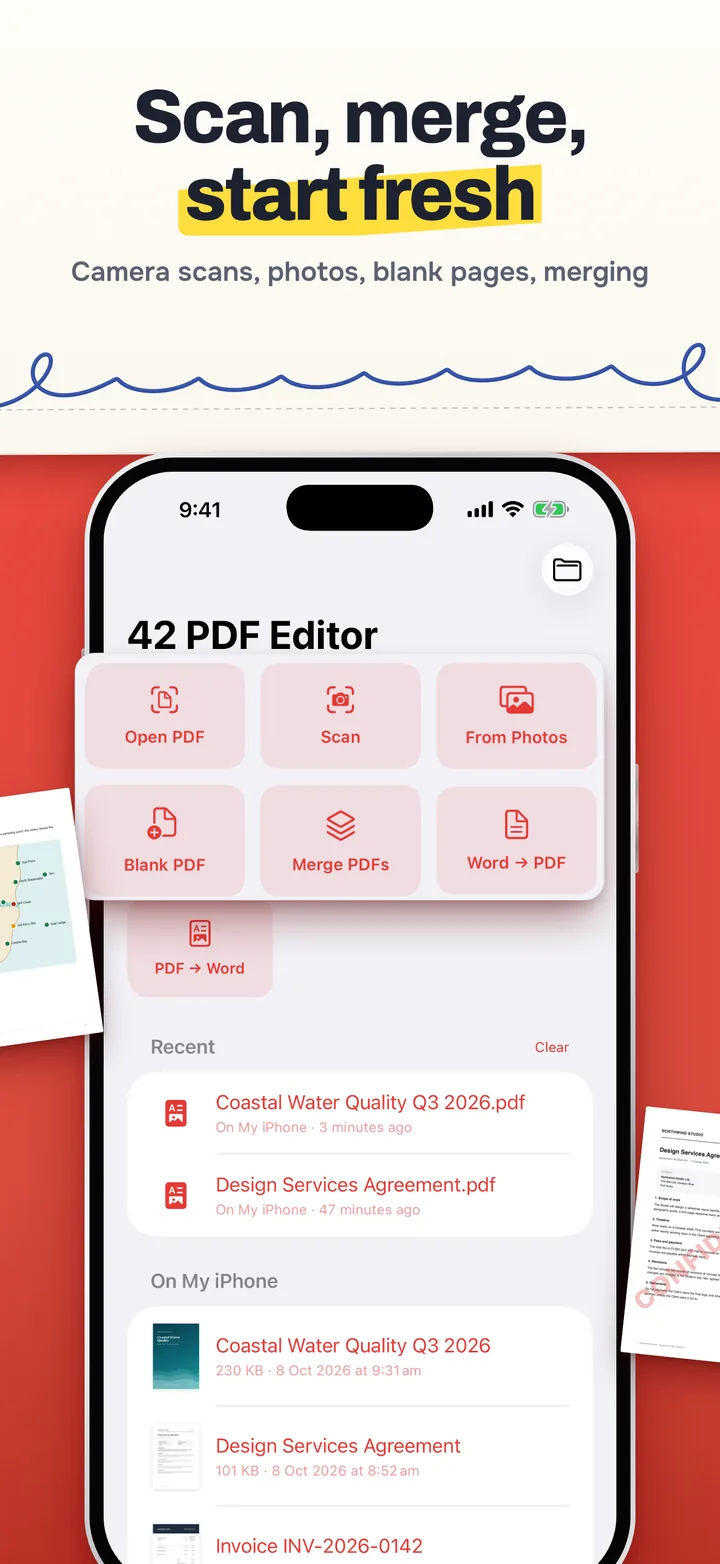
Scan paper with the camera, make a PDF from photos, start a blank PDF, or merge several PDFs into one.

PDF and Word

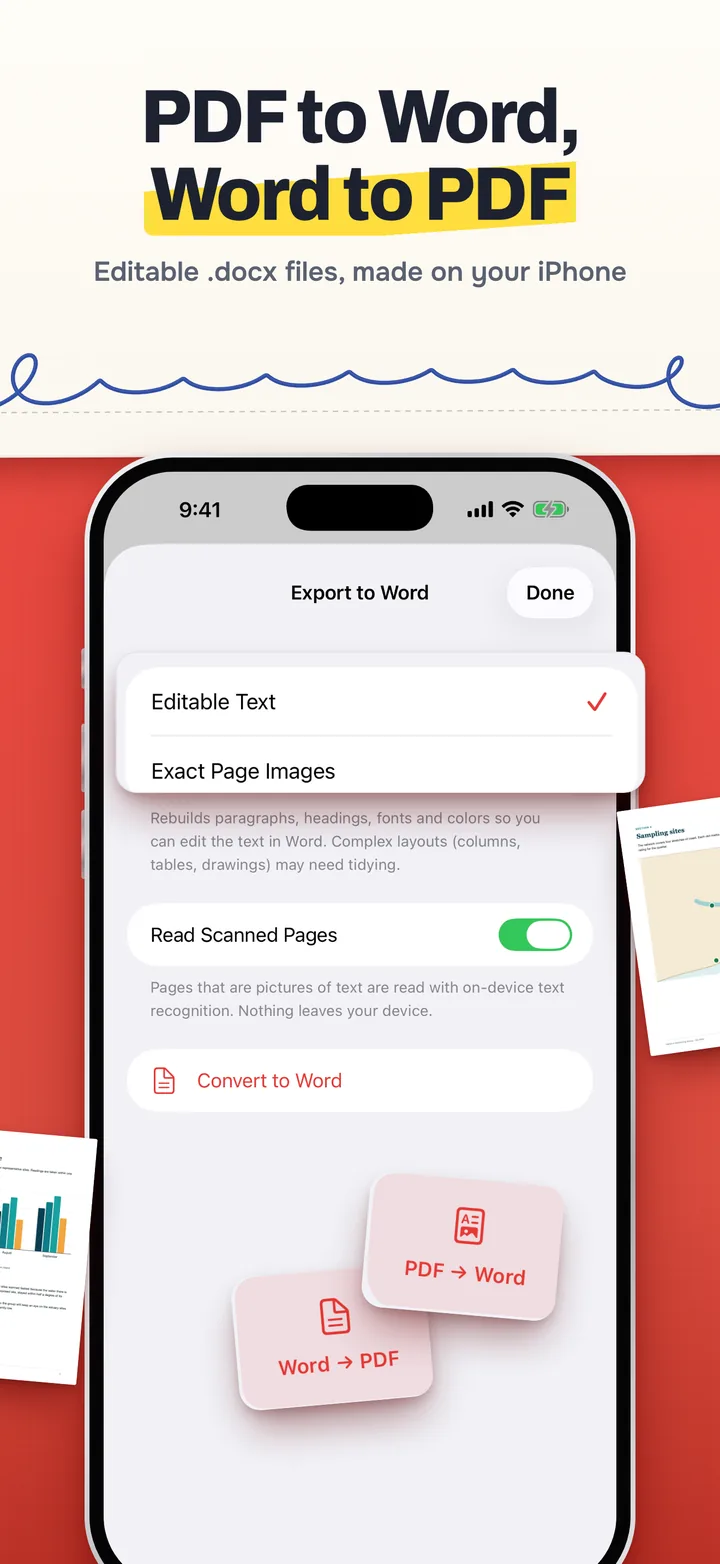
Turn a .docx into a PDF, or a PDF into a Word document with editable text or with a picture of each page.

Stays on Your Device

No account, no analytics, no ads, and no servers. Your documents and signatures never leave the device unless you share them.

More

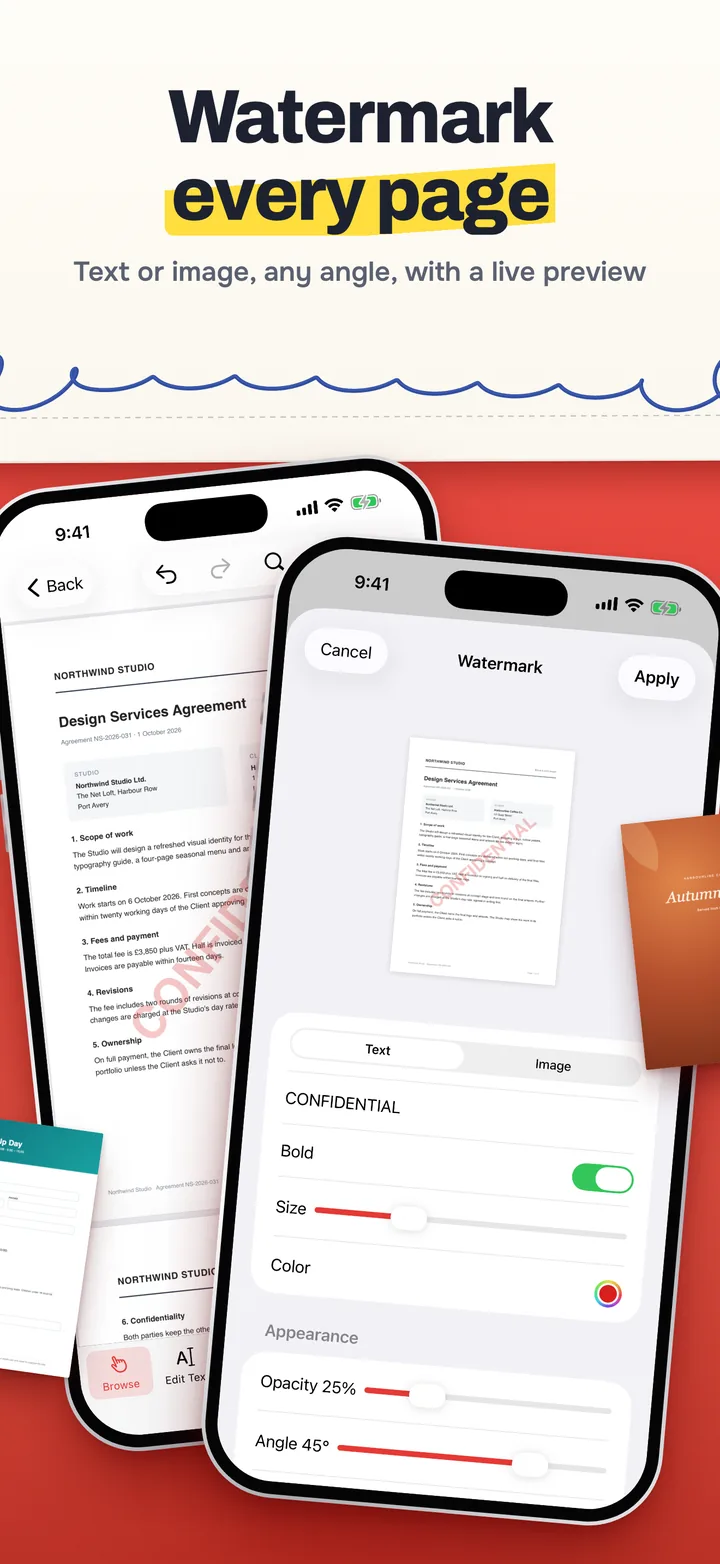
  • Watermarks in text or from a picture, with opacity, angle and position (centre, top, bottom or tiled), in front of or behind the page, on all pages, one page or a range.
  • Images, such as stamps and logos, placed and sized like a signature.
  • Whiteout to cover part of a page, and an eraser and select tool to move, recolour or delete markup.
  • Passwords. Open a protected PDF with its password, and add, change or remove a password when you save.
  • Saving: save in place, Save a Copy, Save a Flattened Copy with the markup drawn into the pages, Share and Print. Leaving with unsaved changes asks first, and the app saves when it goes to the background.
  • Undo and redo for every change.
  • Open in 42 PDF Editor from the Files app and the share sheet. New PDFs, scans and Word exports go to On My iPhone › 42 PDF Editor, which also shows up in the Files app.
  • iPad as well as iPhone, with Apple Pencil for drawing and signing.

PDF and Word, both ways

Converted on your device, with nothing sent to a conversion website.

  • Word to PDF

    From a .docx file, or as pages inserted into an open PDF

    Carries over:

    • Paragraph and character styles, headings, fonts, sizes and colours
    • Bulleted and numbered lists, and tables
    • Links and pictures
    • The document's page size and margins
  • PDF to Word

    Saves a .docx you can share or open in Word

    Editable Text rebuilds the paragraphs, headings, fonts, sizes, bold, italic and colours. Scanned pages are read with on-device text recognition, and text you typed in the app is included.

    Exact Page Images puts a picture of each page into the document instead, for when the look matters more than editing.

Not converted: older .doc files, headers and footers, footnotes, comments, charts, SmartArt and EMF or WMF pictures. Fonts that iOS doesn't have, such as Calibri, are replaced by a similar one, so line breaks can differ from Word. Text hidden with Whiteout or Edit Text is left out of the Word file.

Screenshots

The App Store set is one continuous picture, so keep swiping.
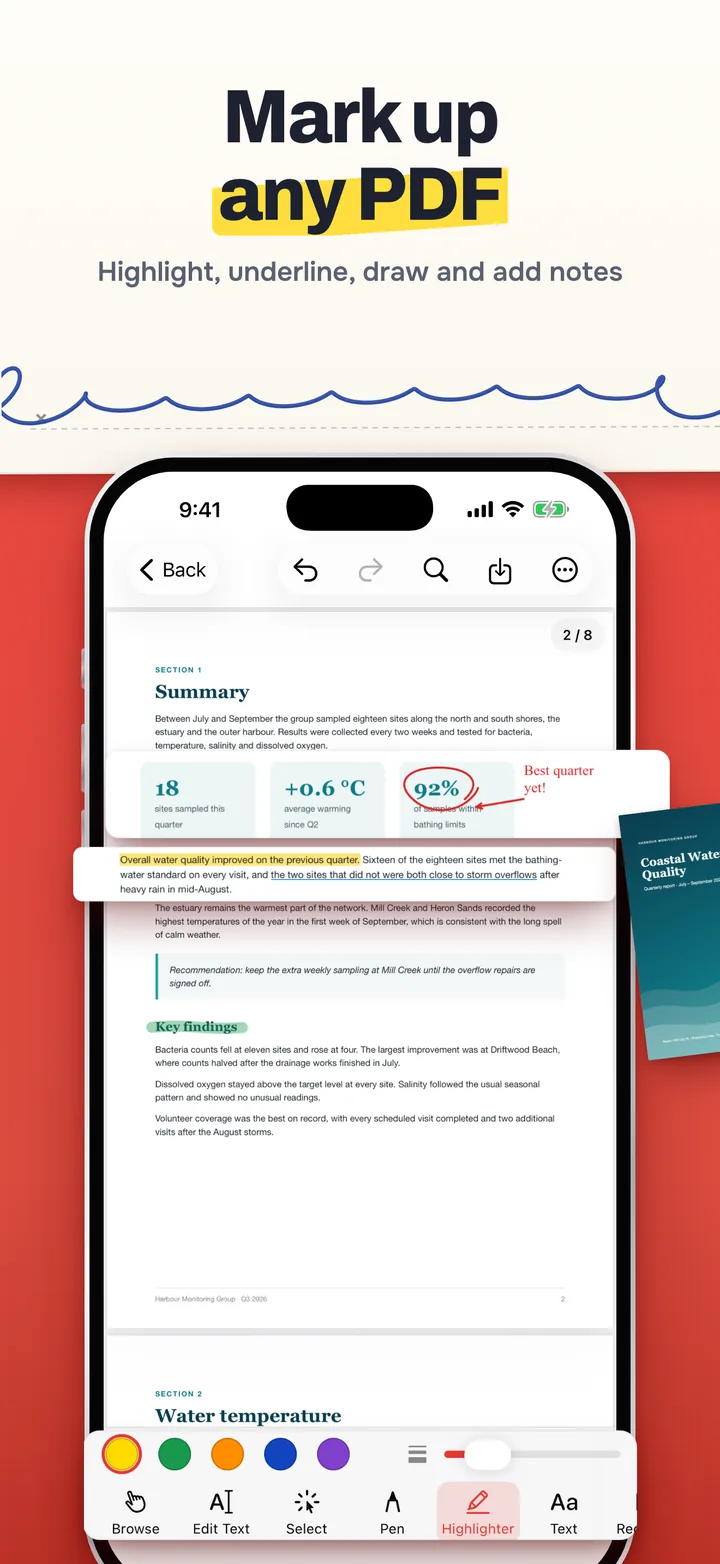
Mark up any PDF: a report page with a highlighted sentence, an underline, a pen loop around 92 percent with the note Best quarter yet!, and the highlighter tool selected.
Sign in seconds: a saved signature being placed on the client's signature line of a services agreement, with Cancel and Place, and the saved signature beside the phone.
Fix a typo, retype a line: Edit Text changing an invoice due date from 15 October 2026 to 29 October 2026, with font, size and colour options, and the corrected invoice beside the phone.
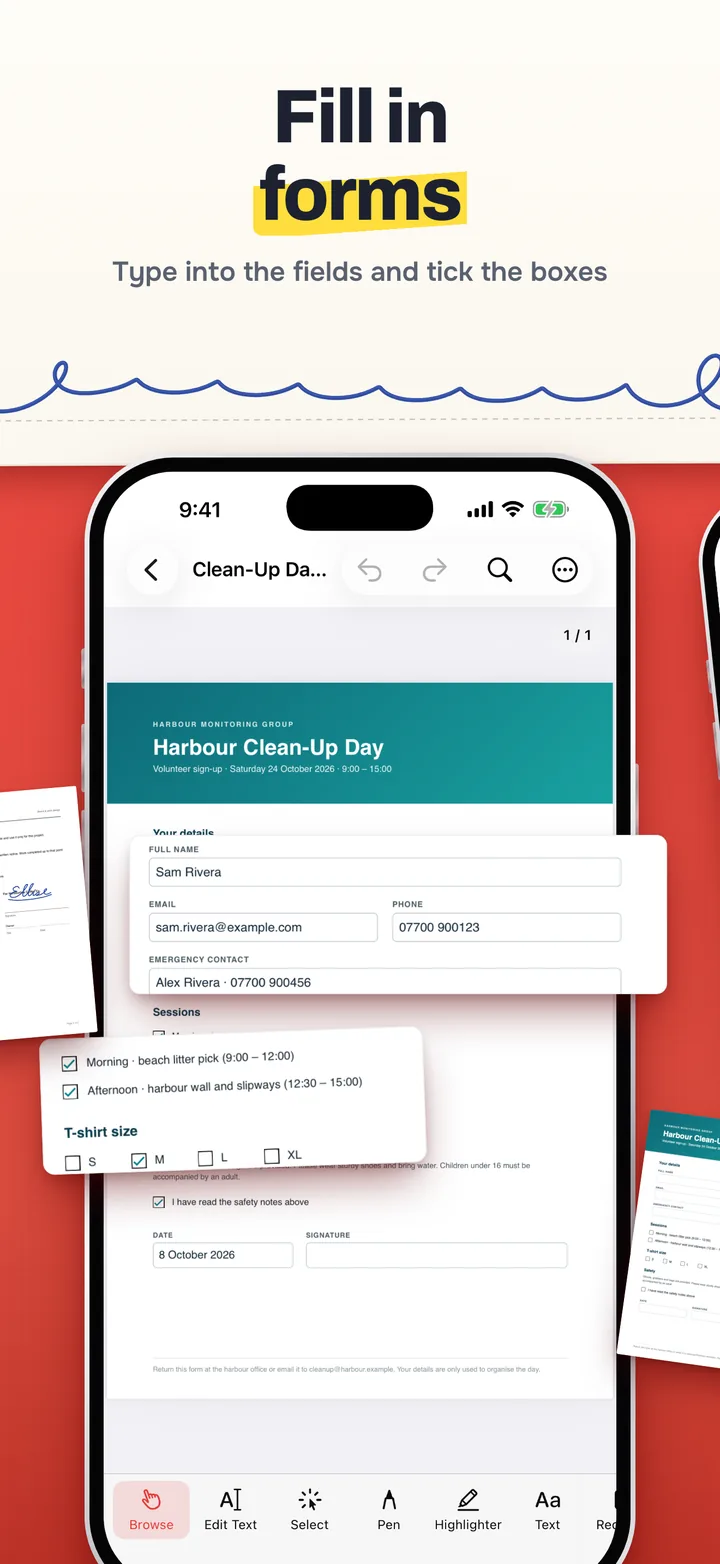
Fill in forms: a volunteer sign-up form with the name, email, phone and emergency contact filled in, and the session and T-shirt size boxes ticked.
Watermark every page: the watermark sheet with CONFIDENTIAL as the text and bold, size, colour, opacity and angle settings, in front of an agreement page stamped with the watermark.
Pages in any order: the page grid of an eight-page report, with page 2 lifted out as it is dragged to a new place.
PDF to Word, Word to PDF: the Export to Word sheet with Editable Text, Exact Page Images and Read Scanned Pages, and the Word to PDF and PDF to Word buttons beside it.
Scan, merge, start fresh: the 42 PDF Editor home screen with Open PDF, Scan, From Photos, Blank PDF, Merge PDFs, Word to PDF and PDF to Word, then recent files and PDFs on the iPhone.
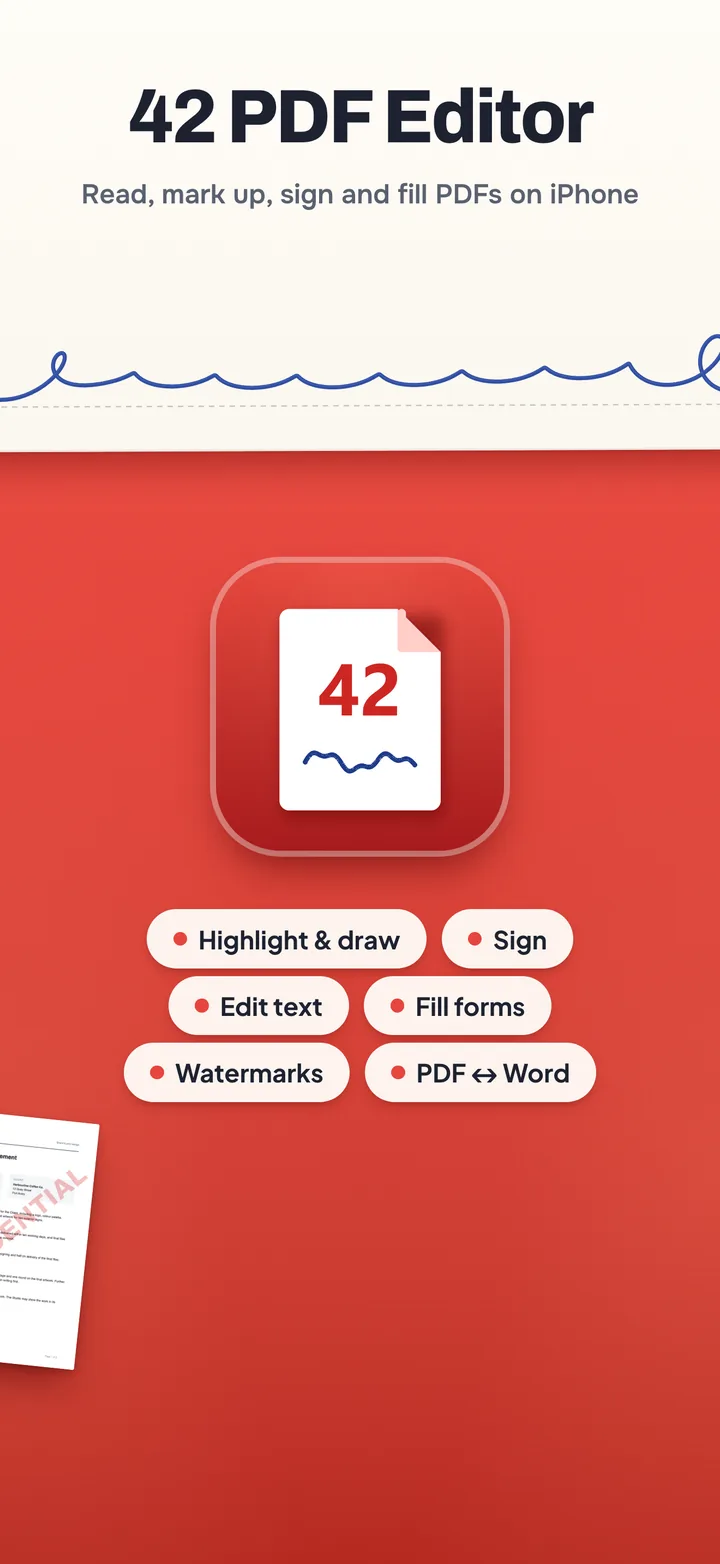
42 PDF Editor, read, mark up, sign and fill PDFs on iPhone: the app icon with highlight and draw, sign, edit text, fill forms, watermarks and PDF to Word.

Swipe or scroll sideways: each panel picks up where the last one ends.

Terms & Conditions

Effective date: October 8, 2026 · Last updated: October 8, 2026

You are responsible for the documents you edit, sign and send. Edit Text and Whiteout hide content from view only: the original text stays in the file, so they are not redaction. Keep backups of documents that matter. Read the full terms →

Read full terms Show less

1. Acceptance of Terms

By downloading, installing or using the 42 PDF Editor application ("the App"), published by CS42.org ("we", "us", "our"), you agree to these Terms and Conditions. If you do not agree, please do not use the App.

2. Description of Service

42 PDF Editor is a free application for reading and editing PDF documents on iPhone and iPad. It lets you annotate, fill in and sign PDFs, retype text, add watermarks and images, rearrange pages, scan paper documents with the camera, create PDFs from photos, merge PDFs, set passwords, convert Word (.docx) documents to PDF and PDFs to Word, and save, share and print the result. All processing happens on your device.

3. Licence

We grant you a personal, non-exclusive, non-transferable, revocable licence to use the App on Apple devices you own or control, in line with the Apple Media Services Terms and Conditions. We retain all rights not expressly granted.

4. Your Documents and Your Responsibility

The documents you open, create and edit with the App are yours. We claim no ownership of them and, because they are never sent to us, we have no access to them. You are responsible for their content, for having the right to change, sign and share them, and for checking every document before you sign, send or submit it.

5. Signatures

Signatures you place with the App are drawings of your handwritten signature. They are not certificate-based digital signatures: the App does not verify anyone's identity and does not certify a document. Whether a signed document is accepted, and what legal effect a signature has, depends on the people and laws involved. Only sign documents you are entitled to sign, and only with your own signature.

6. Edit Text and Whiteout Are Not Redaction

Edit Text covers the original line with a patch in its background colour and places the new text on top. Whiteout covers part of a page. In both cases the original text is still inside the file underneath: it can be found by search, copied, and read by other software. Saving a flattened copy does not remove it either. Do not use these tools to hide confidential or personal information. Use a dedicated redaction tool for that.

7. Conversions and Text Recognition

Converting between Word and PDF, and reading scanned pages with text recognition, are approximate. Layout, fonts and line breaks can change, some content is not converted, and recognised text can contain mistakes. Check the result before you rely on it.

8. Saving, Backups and File Loss

The App saves your changes to the original file when you tap Save, when you choose Save as you leave a document, and automatically when the App goes to the background with unsaved changes. Save a Copy leaves the original unchanged. Watermarks and images become part of the page content when they are placed, and undo can remove them only until the file is closed. Deleting a file in the App removes it from the device, and the App cannot undo that. Keep backups of documents that matter. We are not responsible for lost, damaged or altered documents, including those caused by an interrupted save, a damaged PDF, a file provider's syncing, or a forgotten password.

9. Passwords

A password you add protects the PDF with the encryption the PDF format provides. We never see or store it, and we cannot recover it. If you forget it, the document cannot be opened.

10. Third-Party Services

iCloud Drive, Dropbox and other file providers, Microsoft Word, printing and the apps you share to are run by others under their own terms and privacy policies. Their syncing, availability and handling of your documents are outside our control.

11. Acceptable Use

  • You shall not use the App to forge or falsify documents or signatures, to sign on someone else's behalf without their authority, or to misrepresent anyone.
  • You shall not use the App to remove or work around protection on documents you are not entitled to open or change.
  • You shall not reverse-engineer, decompile or disassemble the App, except where that restriction is prohibited by law.
  • You shall not use the App for any unlawful purpose.

12. Availability and Changes

We may add, change or remove features at any time, and we may stop supporting the App.

13. Disclaimers

The App is provided "as is", without warranties of any kind, express or implied, including fitness for a particular purpose and uninterrupted or error-free operation. We do not warrant that the App will open, display, edit, convert or save every document correctly.

14. Limitation of Liability

To the fullest extent permitted by law, CS42.org is not liable for indirect or consequential loss arising from your use of the App, including the loss or corruption of documents, information exposed by text you believed was hidden, or rejected or delayed submissions. Nothing here limits liability that cannot lawfully be limited.

15. Termination

You may stop using the App at any time by deleting it. This licence ends automatically if you breach these terms.

16. Governing Law

These terms are governed by the laws applicable at the developer's place of establishment, without regard to conflict-of-law principles.

17. Changes to Terms

We may update these terms. The dates at the top change when we do, and continued use after an update means you accept the revised terms.

18. Contact

If you have any questions about these terms, contact us at hello@cs42.org.

Last updated: October 8, 2026

Privacy Policy

Effective date: October 8, 2026 · Last updated: October 8, 2026

Your documents never leave your device. 42 PDF Editor has no accounts, no servers and no analytics. Scanning, text recognition, signing and Word conversion all run on your iPhone or iPad. We collect nothing, so there is nothing to sell, share or delete. Read the full policy →

Read full privacy policy Show less

CS42.org ("we", "us", "our") built 42 PDF Editor as a free PDF editor. This policy explains what the app handles and where it goes. The short version: your documents stay on your device and in the storage providers you choose. 42 PDF Editor has no accounts, no servers of its own and no analytics, and it contains no code that sends your documents or data to us or to anyone else.

1. What We Collect

Nothing. We operate no servers for the app and receive no data from it. We cannot see your documents, your signatures, or how you use the app.

2. Your Documents

The app reads and writes only the documents you open with it: through the system file picker, from the Files app or the share sheet (Open in 42 PDF Editor), or in its own folder, On My iPhone › 42 PDF Editor. Changes are saved back to the same file, or to a new copy where you choose. New PDFs, scans and Word exports are saved in the app's own folder, which you can also see in the Files app. Documents in iCloud Drive, Dropbox or any other provider are stored and synced by that provider under its own terms.

3. What the App Stores on Your Device

  • Recent documents: each one's name, where it is (its path), when you last opened it, and a security-scoped bookmark, the permission iOS gives the app to reopen that file without asking you to pick it again. The list keeps up to 30 documents.
  • Signatures: the strokes of each signature you draw, its ink colour and the date you made it. They are kept in a file in the app's private storage, written with iOS's complete file protection, so the file cannot be read while your device is locked. A signature goes into a document only when you place it there. Like the rest of the app's data, signatures are included in your device backup (iCloud Backup or a computer backup) if you have backups turned on.
  • One preference: the page layout you last chose (continuous, single page or horizontal).
  • Temporary copies made to share, export or save a document. They go in the app's temporary folder and are removed the next time you share and when the app next starts.

None of it is transmitted. It is not part of any account, because there is no account.

4. PDF Passwords

When you unlock a protected PDF, the password is used to open it and, when you save, to protect the file again. It is held in memory only while the document is open and is never stored or sent anywhere. A password you add is applied using the PDF format's own encryption.

5. Camera

The camera is used only by the document scanner (Apple's VisionKit), and only while the scanner is open. iOS asks your permission the first time. Scanned pages go straight into your document on the device; the app keeps no other copy and takes no photos of its own. If you decline camera access, everything else in the app still works.

6. Photos

Making a PDF from photos, adding photos as pages, placing an image and choosing a picture for a watermark all use the system photo picker, which gives the app only the photos you select. The app cannot browse your photo library and never saves to it, so it does not ask for photo library permission.

7. On-Device Processing

Reading, editing, saving and password protection use Apple's PDFKit. Text recognition for scanned pages, when you export to Word, uses Apple's Vision framework on the device. Word documents are converted by the app's own code, with page layout done by Apple's WebKit with scripts turned off; pictures that a Word file links to on the web are left out rather than downloaded. No document ever leaves the device for processing.

8. Links in Documents

The app does not connect to the internet. If you tap a web link inside a PDF while browsing it, the link opens in Safari, as it would from any other app.

9. Sharing and Printing Are Always Your Choice

Nothing is shared automatically. When you tap Share or Print, iOS hands the document to the app, printer or service you pick, and from that point its privacy policy applies.

10. No Tracking, No Ads, No Third-Party SDKs

The app contains no advertising, no analytics, no crash-reporting services and no tracking identifiers. It does not use the Advertising Identifier and does not "track" you as defined by Apple's App Tracking Transparency framework.

11. Children

The app is rated 4+. Because we collect no data at all, we hold no personal information about anyone, including children.

12. Your Control and Your Rights

  • Swipe a recent document to remove it, or tap Clear to empty the list.
  • Swipe a saved signature to delete it.
  • Rename or delete the documents in the app's own folder from its home screen or from the Files app.
  • Deleting the app removes its recent list, its signatures, its preference and the documents in its own folder (On My iPhone › 42 PDF Editor). Move any document you want to keep out of that folder first. Documents you opened from anywhere else stay where they are.

There is no request to make of us under GDPR, CCPA or similar laws, because we hold nothing to disclose, correct or erase.

13. Data Retention

We retain nothing, for any period. The app keeps the items above on your device until you remove them or delete the app.

14. Security

Your documents are protected by your device's own security: your passcode, Face ID or Touch ID, and iOS app sandboxing, which lets the app reach only its own folder and the documents you pick. Signatures also have complete file protection. Keep your device updated and locked.

15. International Users

We receive no data, so no data is transferred to us from any country.

16. Changes to This Policy

If this policy changes, the dates at the top change with it, and material changes will be described in the app's release notes.

17. Contact Us

If you have any questions about this Privacy Policy, contact us at hello@cs42.org.

Last updated: October 8, 2026

Support

Questions about 42 PDF Editor?

42 PDF Editor isn't on the App Store yet. If you'd like to hear when it is, leave your email in the launch form above. For anything else, including a PDF or Word file that doesn't come out right, write to us:

View FAQ Hide FAQ

When is 42 PDF Editor coming out?

Soon. Leave your email in the launch form and we'll send one message on the day it reaches the App Store, and nothing else.

Can I hide text with Edit Text or Whiteout?

Only from view. Both tools cover the original and place new content on top, but the original text stays in the file, where search, copy and other apps can still find it. Don't use them to hide anything confidential.

Where are my signatures kept?

On your device only, in the app's private storage with complete file protection. Swipe a signature in the list to delete it.

Do my documents get uploaded for conversion or text recognition?

No. Word conversion and text recognition run on your iPhone or iPad. The app has no server and doesn't connect to the internet.

Will saving change my original file?

Save writes to the original. Use Save a Copy to keep the original as it was. The app also saves when it goes to the background with unsaved changes, so make a copy first if you only want to try something out.

Can it open password-protected PDFs?

Yes, with the password. The file stays protected when you save, and you can change or remove the password from the menu.

Does it open old .doc files?

No, only .docx. Open a .doc file in Word or Pages and save it as .docx first.

We typically respond within 48 hours.