PhotoSweep App Icon

Now on the App Store

PhotoSweep

Reclaim your storage

Find the photos and videos eating your iPhone (the biggest files, the duplicates, the months you never cleaned out) and clear them in one pass. Every scan runs on your device, and nothing is deleted without your confirmation.

Out Now

PhotoSweep is live on the App Store

Thanks to everyone who joined the waitlist. The wait is over. PhotoSweep: Storage Cleaner is out now for iPhone. Free, no ads, and no in-app purchases.

Free · iOS 17.0 or later

View on the App Store (opens in a new tab)

About PhotoSweep

What is PhotoSweep?

PhotoSweep shows you where your storage actually went, then makes clearing it fast. It lists every photo and video by real file size, finds exact and similar duplicates by comparing metadata and image fingerprints, and turns any month (or any date range) into a deck you swipe through: left to trash, right to keep. Everything you trash is staged in the app, not deleted, until you confirm and approve iOS's own deletion dialog. All analysis happens on your iPhone; the app has no account, no servers, and nothing to upload.

  • How the Duplicate Scan Works

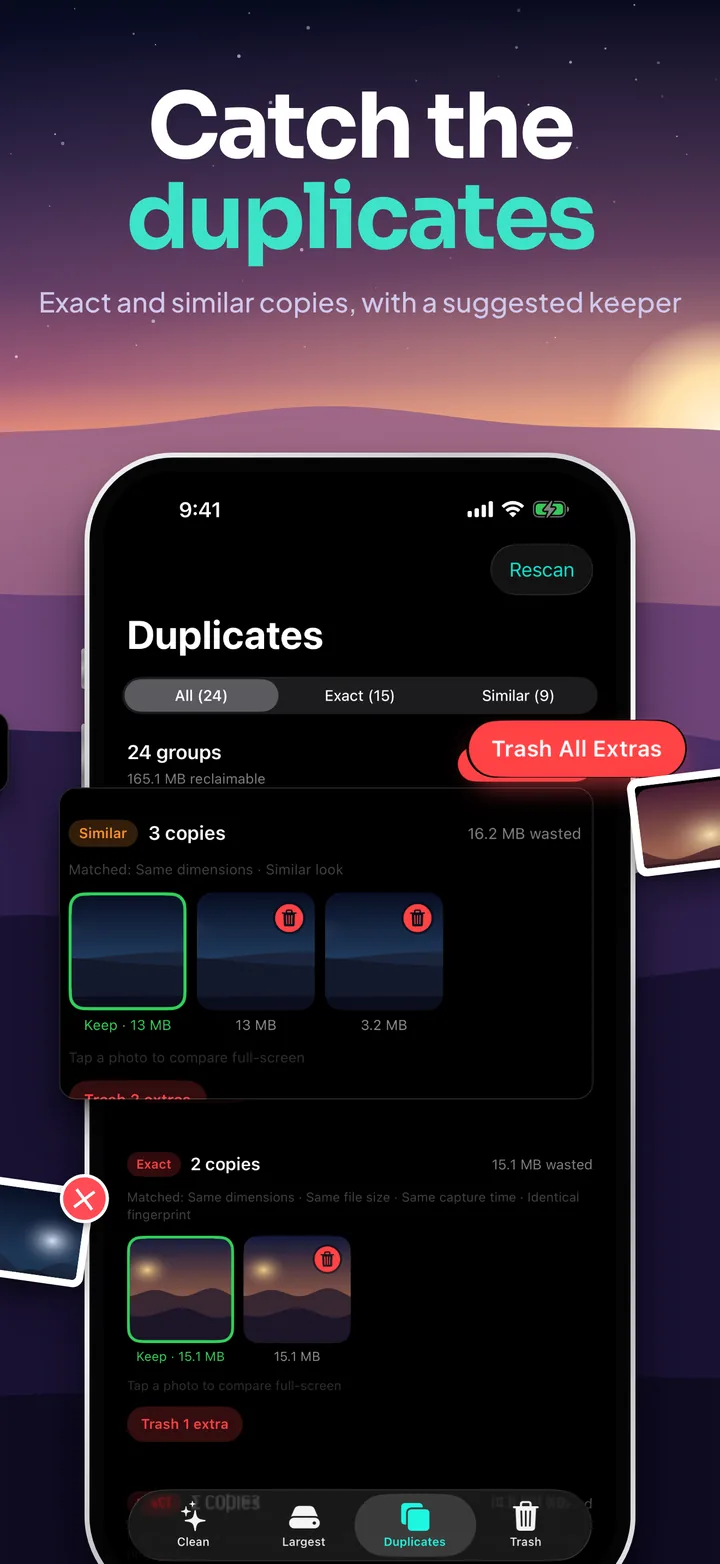
    Two passes, both on device. The first buckets your library by media type, exact pixel dimensions, and duration, so only items that agree on all three are ever compared. Which keeps a large library fast. The second pass confirms: videos by identical file size, photos by a perceptual fingerprint computed from a small grayscale thumbnail, so a re-saved or re-compressed copy still matches.

    A group is labelled Exact only when there is hard evidence the files are the same shot: an identical fingerprint together with an identical file size, or an identical size plus a capture time matching to the second and GPS coordinates within about 30 metres. Anything else that merely looks the same is labelled Similar. Each group lists the signals that actually matched, so you can see why it was grouped, and if iOS won't report an item's size, that item is never called an exact copy.

Screenshots

The App Store set is one continuous picture, so keep swiping.

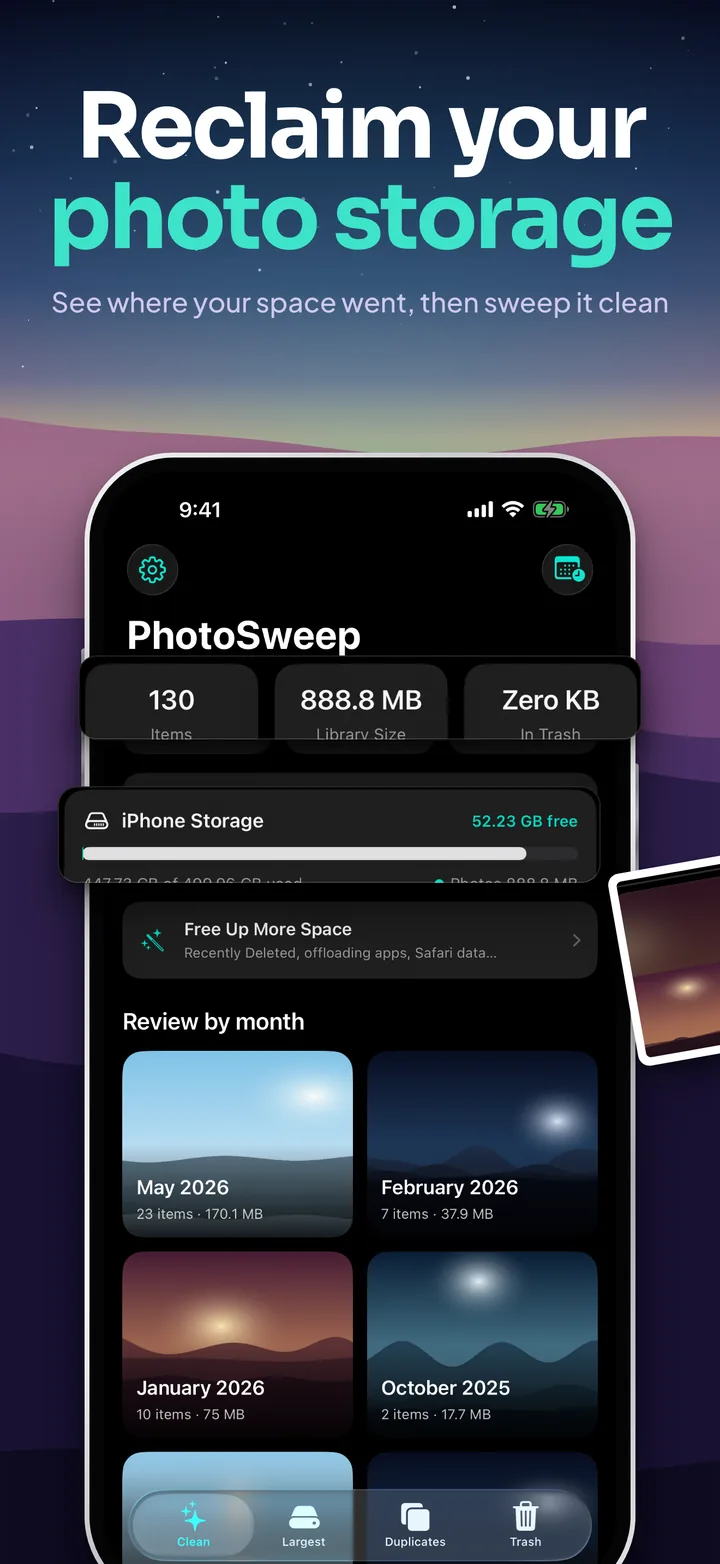
Reclaim your photo storage: the Clean tab with 130 items, an 888.8 MB library, the iPhone storage bar and months to review.
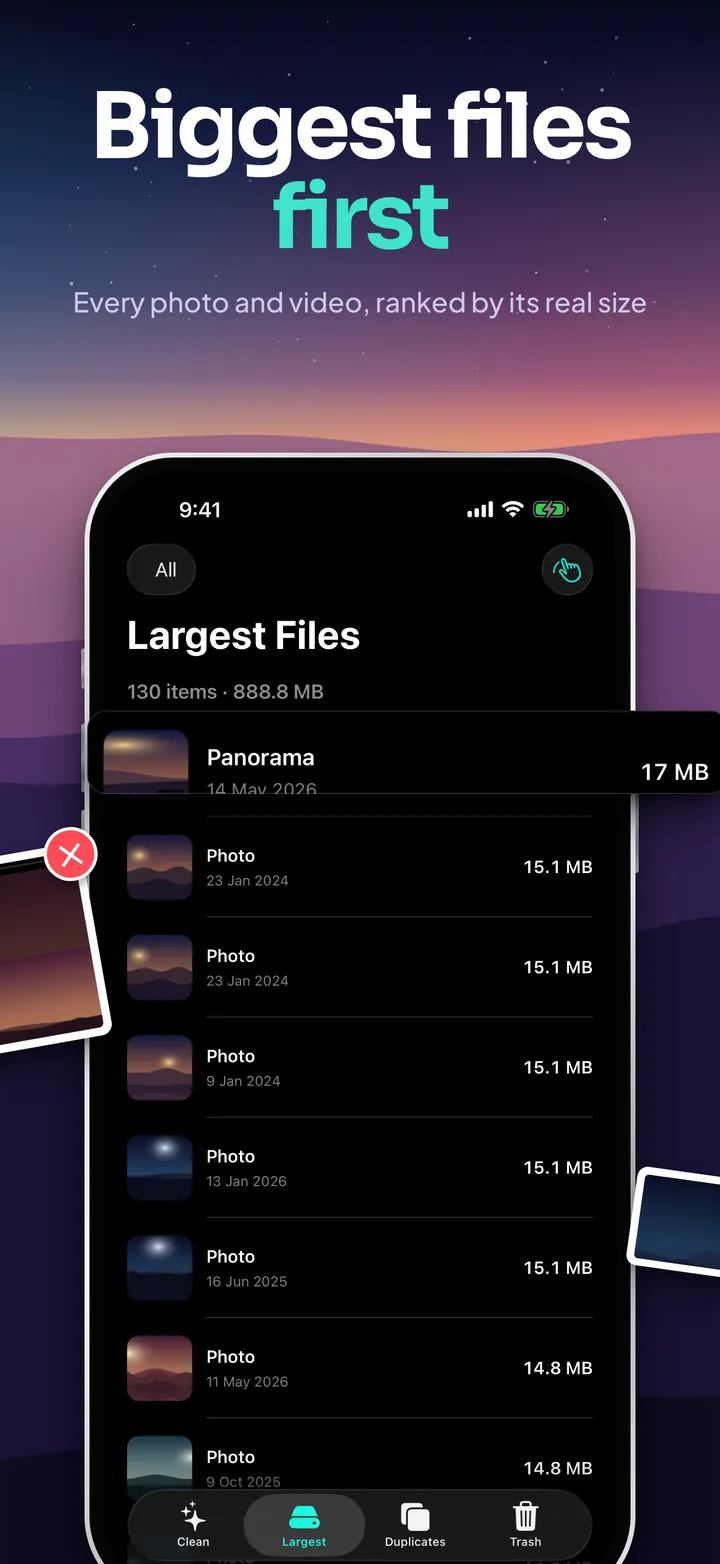
Biggest files first: the Largest Files list sorted by real size, with a 17 MB panorama at the top.
Catch the duplicates: similar and exact groups with a suggested keeper and a Trash All Extras button.
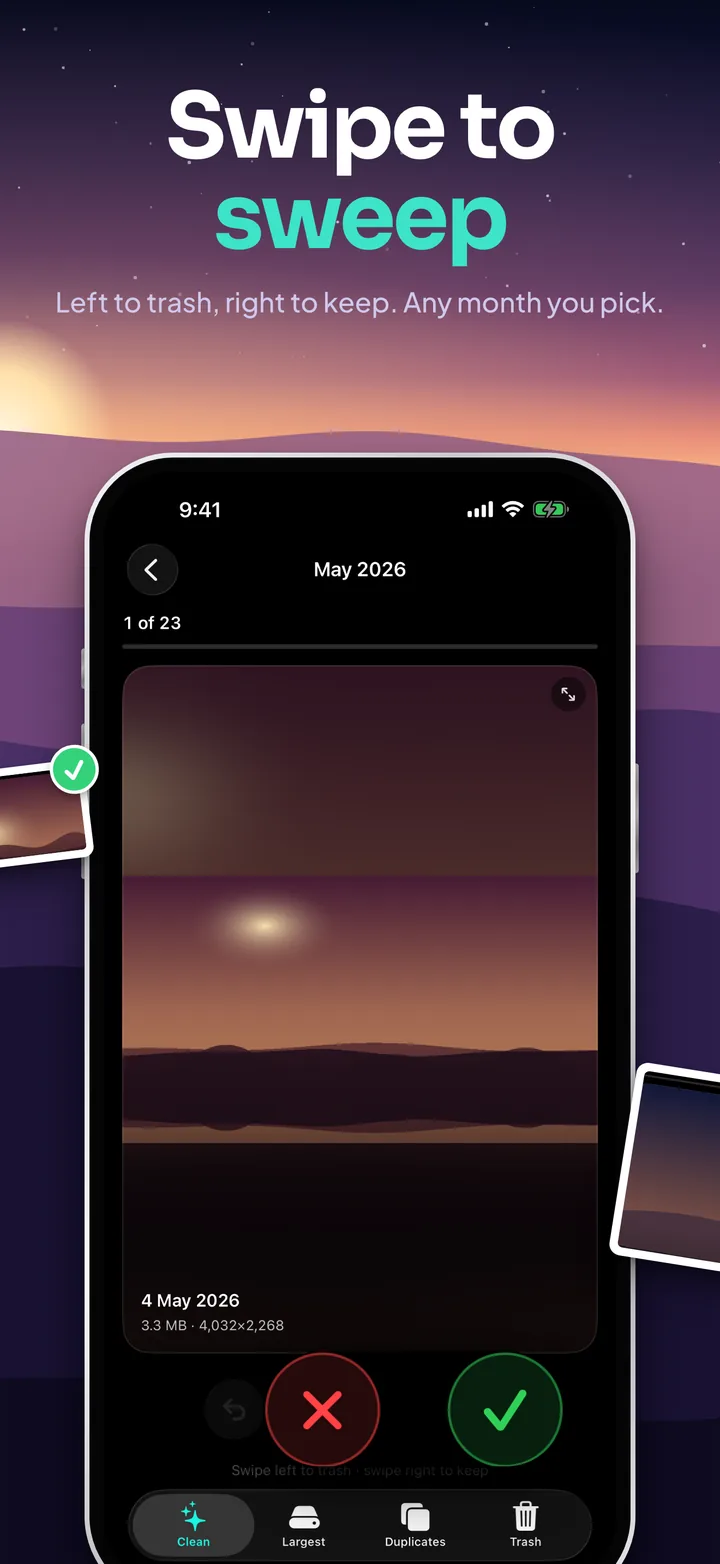
Swipe to sweep: a photo from May 2026 in the swipe deck, with trash and keep buttons.
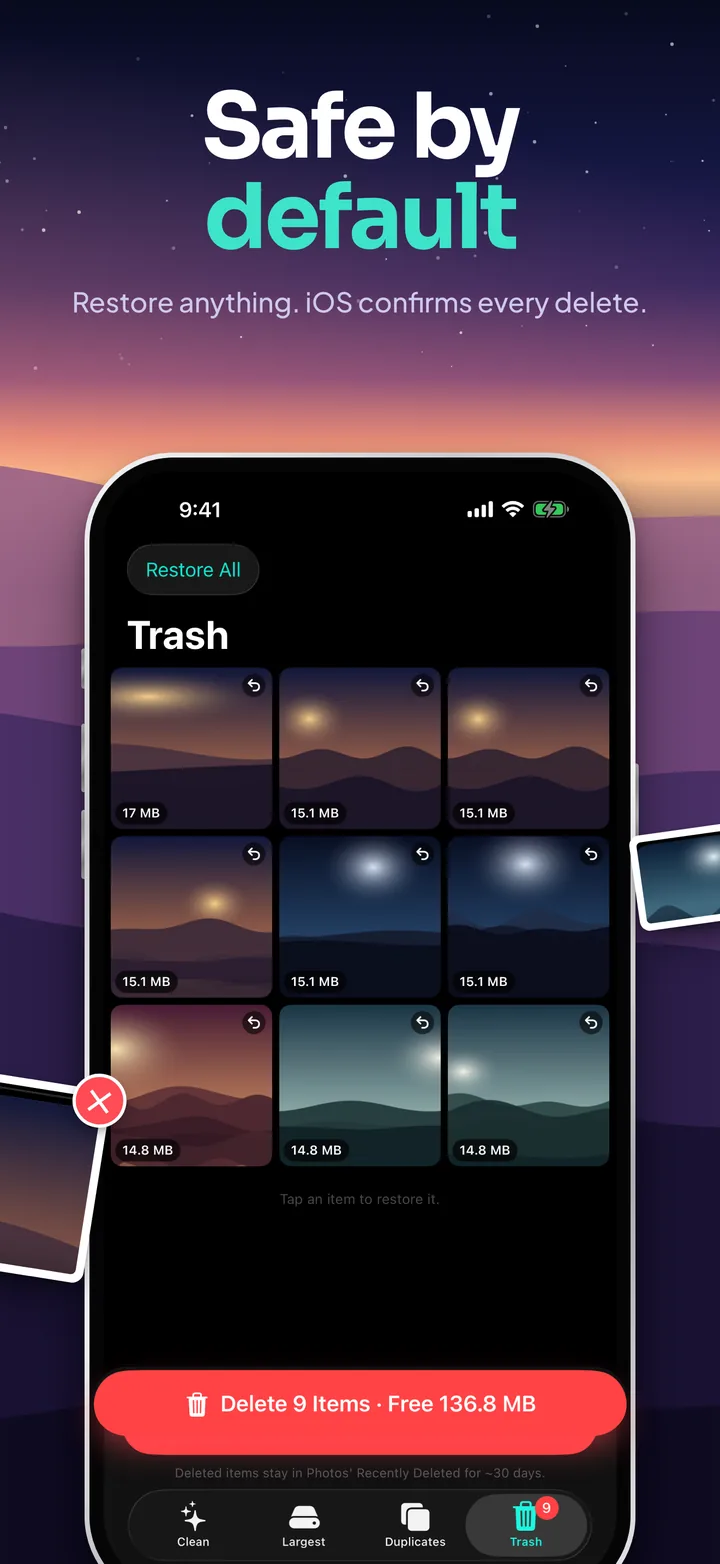
Safe by default: the Trash tab with nine staged photos that can be restored, and a button to delete them and free 136.8 MB.
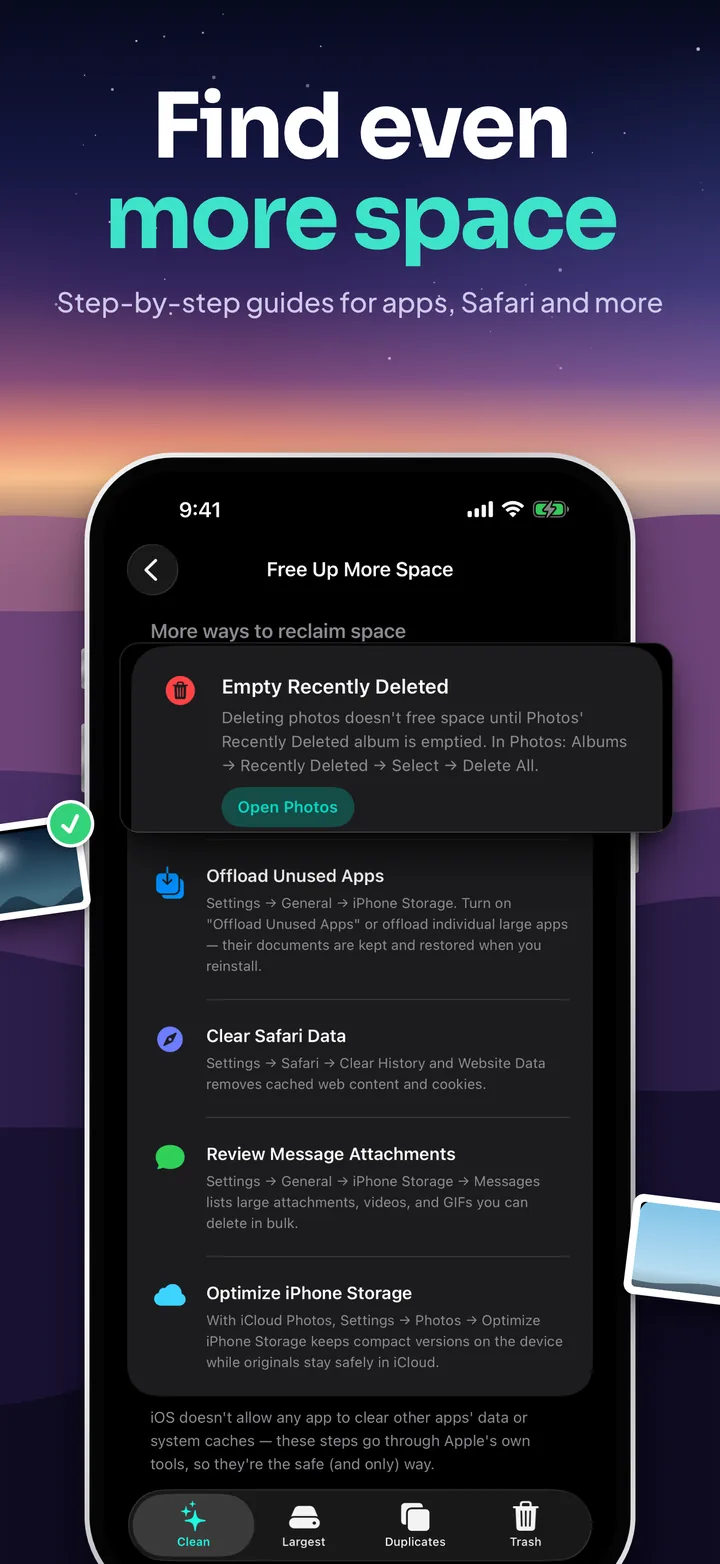
Find even more space: step-by-step guides for emptying Recently Deleted, offloading apps and clearing Safari data.
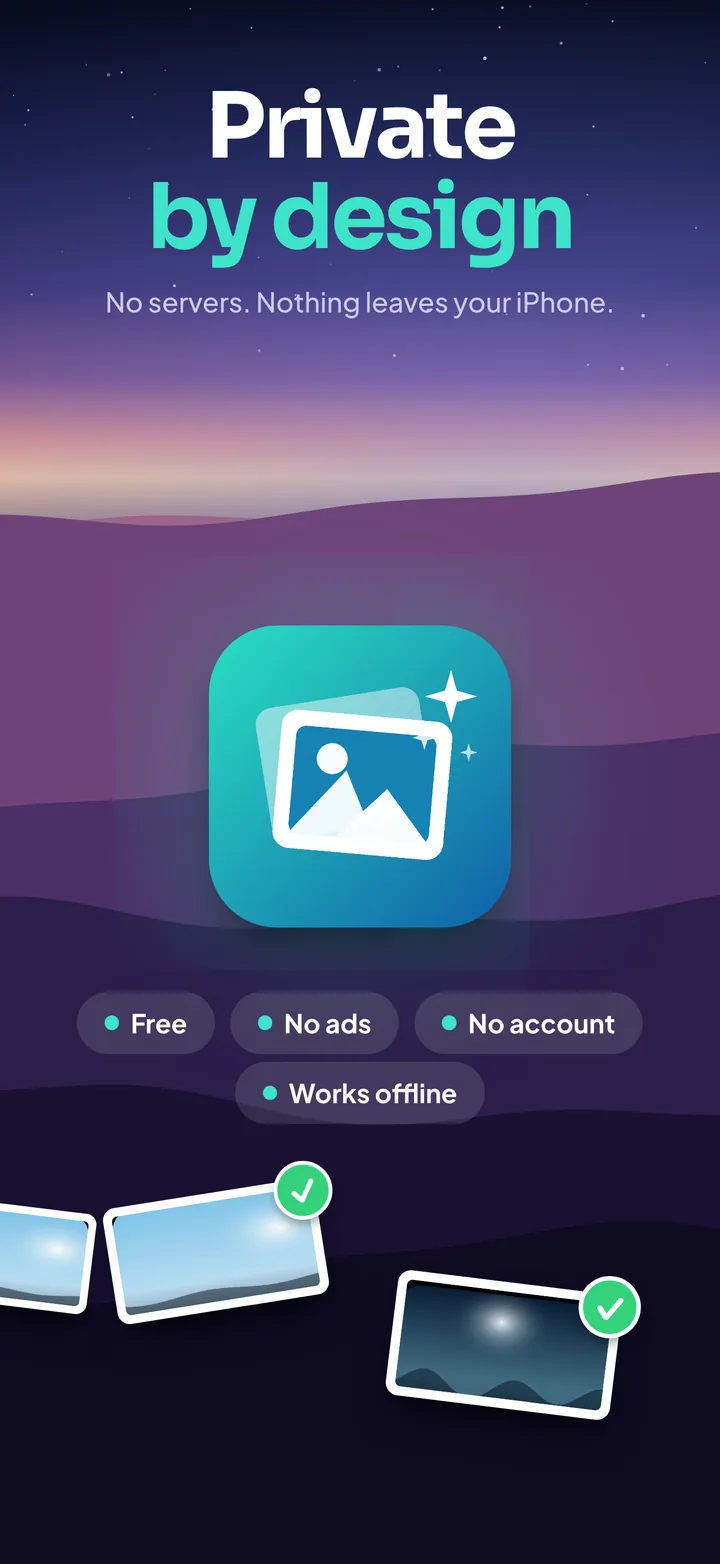
Private by design: the PhotoSweep icon with Free, No ads, No account and Works offline.

Swipe or scroll sideways: each panel picks up where the last one ends.

Key Features

  • Largest Files, Ranked Honestly

    Every photo and video by its real size on disk, biggest first, with a running total in the header. Filter to Photos, Videos, or Screenshots, full-swipe a row to stage it, or hand the fifty largest straight to the swipe deck.

  • Swipe Review

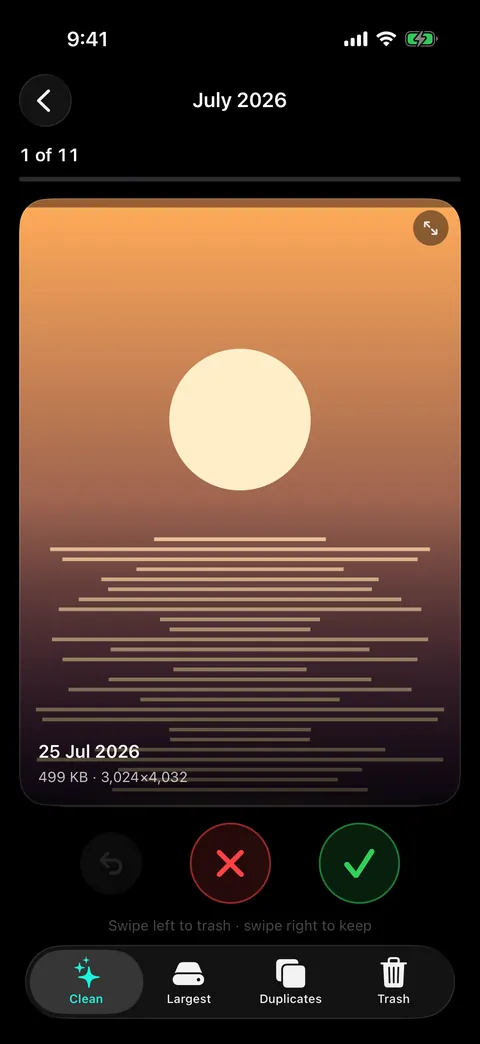
    Left to trash, right to keep. KEEP and TRASH stamps fade in as you drag, with buttons if you'd rather tap and Undo to step back one decision at a time. An orange chip tracks how much you've staged this session.

  • Duplicates That Show Their Work

    Groups are badged Exact or Similar and list the matched signals, same dimensions, same file size, same capture time, same location, identical fingerprint. Filter to just Exact or just Similar, with live counts.

  • A Suggested Keeper You Can Overrule

    Each group nominates the largest file to keep, outlined in green, with a one-tap trash button on every extra. Tap any thumbnail for a full-screen side-by-side pager, or clear every redundant copy at once.

  • By Month, or Any Range

    A month grid with covers, sizes, progress bars, and a seal when a month is done. Decisions are remembered, so a "Continue" card resumes where you stopped, or pick any From and To dates.

  • Look Properly Before You Decide

    Cards show the whole frame aspect-fit over a blurred backdrop with date, size, and dimensions. Panoramas pan slowly at full height instead of shrinking to a sliver. Videos play inline; any photo opens to a pinch-zoom viewer.

  • A Trash That Stages, Not Deletes

    Nothing leaves your library while you decide. Review the pile as a grid with sizes, tap to restore, or Restore All. The list survives quitting the app, and deletion only happens after you approve iOS's own dialog.

  • iPhone Storage, in Context

    A storage bar shows how much of your device is used, how much is free, and (in mint) exactly how much of it is your photo library. Counters above track items, library size, and what's staged.

  • Free Up More Space, Without the Fake Magic

    A checklist of the wins only you can do, each pointing at Apple's own tools: empty Recently Deleted, offload unused apps, clear Safari data, review Message attachments, turn on Optimize iPhone Storage.

Read moreShow less

More

  • Sound effects and haptics, distinct cues for keep, trash, undo, and a completed deletion, each toggleable.
  • Limited-access support. Share only selected photos and PhotoSweep works on just those, with a Manage button to change the selection.
  • Screenshot, panorama, and video labels, every item says what it is, so you know what you're judging.
  • Reduce Motion respected. Panorama auto-pan holds still when the system setting is on.
  • Dynamic Type and accessibility labels throughout the review flow.
  • Zero third-party dependencies, no analytics, no ad SDK, no crash reporter, nothing to opt out of.

How It Works

From first launch to reclaimed space

  1. Grant photo library access

    One permission, once. Read access finds your files; write access is what lets the app move the ones you choose into Recently Deleted. Prefer to share only some photos? Limited access is fully supported.

  2. See where the space went

    PhotoSweep indexes your library in the background with a visible progress card, then hands you a storage bar, a library total, and a month grid.

  3. Pick how you want to clean

    Go for the biggest offenders in Largest Files, run a duplicate scan and clear the extras, or open a month as a swipe deck.

  4. Decide, one item at a time

    Swipe left to trash, right to keep. Tap to zoom if you're unsure, play the video, let the panorama pan. Undo if you were too quick.

  5. Review the staged pile

    Everything you trashed is still in your library, waiting in the Trash tab. Restore anything you've changed your mind about. Nothing has been deleted yet.

  6. Confirm, twice

    A sheet names the count and the size, then iOS shows its own deletion dialog. Only after you approve that do items move to Recently Deleted, recoverable for about 30 days.

  7. Empty Recently Deleted to finish

    Storage isn't reclaimed until that album is emptied. The Free Up More Space guide has a button that takes you straight there.

App Information

Quick facts about PhotoSweep for iOS

Developer
CS42
Availability
Out now on the App Store
Price
Free
Category
Utilities
Compatibility
iOS 17.0 or later
Languages
English
Age Rating
4+
In-App Purchases
None
Account
Not required
Data Collected
None
Works Offline
Yes

Support

Need help with PhotoSweep?

If you encounter any issues, have suggestions for new features, or need help with a cleanup, reach out to us. If you're reporting a bug, the three things that help most are: your iPhone model and iOS version, roughly how many items are in your photo library, and what you were doing when it went wrong. Screenshots are welcome.

View FAQHide FAQ

Does PhotoSweep ever delete anything without asking?

No. "Trash" inside PhotoSweep is a staging list. Your photos stay in your library, exactly where they were, and the tab badge just counts what's waiting. Deleting takes three deliberate acts: you tap the delete button, you confirm in a sheet that names the count and the size, and then iOS shows its own system deletion dialog. The app cannot delete a single item without you approving that last dialog, and if you cancel it, everything stays staged.

Can PhotoSweep clean other apps' data, caches, or "junk files"?

No, and neither can any other app on your iPhone, whatever the App Store screenshots imply. iOS sandboxes every app: PhotoSweep can only see what you grant it access to, which is your photo library. It cannot touch another app's storage, the system cache, or temporary files. That's why the built-in Free Up More Space guide is a checklist that walks you into Apple's own tools instead of pretending to do it for you. Photos and videos are usually the biggest thing on the phone anyway, and those PhotoSweep can genuinely help with.

Where do deleted photos go: and why didn't my free space change?

They go to Photos' Recently Deleted album, where they're recoverable for about 30 days. That's also the answer to the free-space question: iOS doesn't release the storage until Recently Deleted is emptied. Open Photos → Albums → Recently Deleted → Select → Delete All, and the space appears. PhotoSweep's guide has an Open Photos button for exactly this.

Do I need an account or an internet connection?

No account, no sign-in, no email address. And it works offline, with one honest exception: if a photo lives only in iCloud because you use Optimize iPhone Storage, iOS needs a connection to fetch that original when it's displayed at full resolution or fingerprinted. That's Apple's system service pulling your own file from your own iCloud account. PhotoSweep has no servers to talk to.

What's the difference between an Exact and a Similar duplicate?

Exact means PhotoSweep has hard evidence the two files are the same shot: identical fingerprint and identical file size, or identical size plus a capture time matching to the second and GPS coordinates within about 30 metres. Similar means they look the same but aren't byte-identical, a re-save, an edit, a messaging-app copy, or one frame out of a burst. Both are shown with the signals that matched, so you can see why they were grouped. If iOS won't report an item's size, that item is never labelled an exact copy.

Why did it pick that copy as the keeper?

The largest file wins, oldest on ties, because the biggest version is normally the least compressed one. It's a suggestion, not a rule. The keeper is just outlined in green and labelled "Keep". Tap through to the side-by-side comparison, and if you disagree, trash the keeper and keep an extra instead.

I swiped too fast and changed my mind.

Undo steps back through the deck one decision at a time. Beyond that, anything you trashed is still staged in the Trash tab: tap a thumbnail to restore it, or Restore All. Nothing is irreversible until you approve the system deletion dialog, and even then, Recently Deleted holds it for about 30 days.

Does it work with iCloud Photos, or if I only shared some of my photos?

Both. Sizes and duplicate groups are worked out from library metadata, so the lists fill in whether or not the originals are on the device; iOS fetches an original from your iCloud when a full-resolution view or a fingerprint needs it. With limited access, PhotoSweep works on just the photos you selected, shows a banner saying so, and gives you a Manage button to change the selection at any time.

Before you write in

  • Space didn't change after deleting? Empty Photos' Recently Deleted album, iOS holds the storage until you do.
  • A photo won't open full-screen? It probably lives only in iCloud. Check your connection so iOS can fetch the original.
  • Missing photos in the app? You may have granted limited access. Tap Manage on the banner to add more.
  • Duplicate scan found nothing? That's a real result. Only items matching on type, dimensions, and duration are ever compared.

We typically respond within 48 hours.