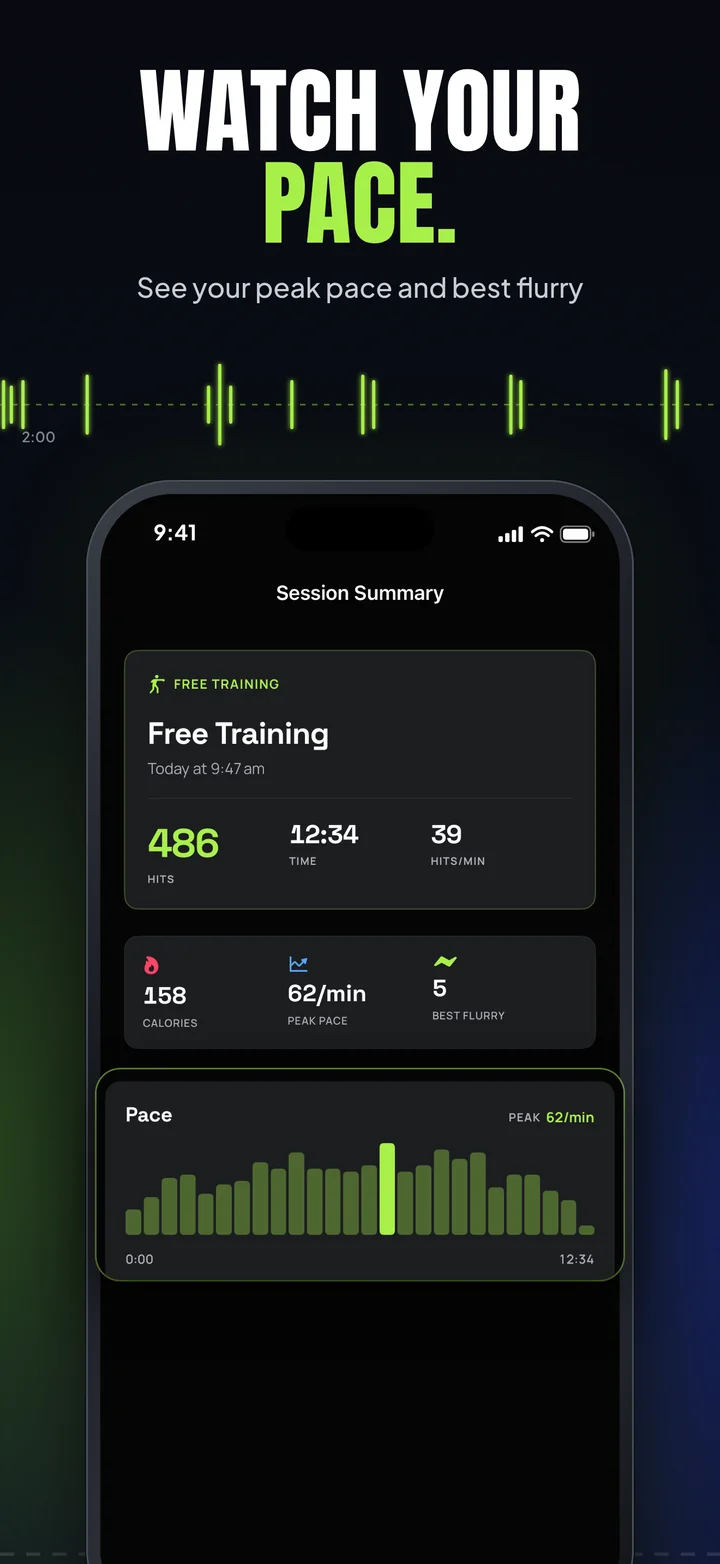
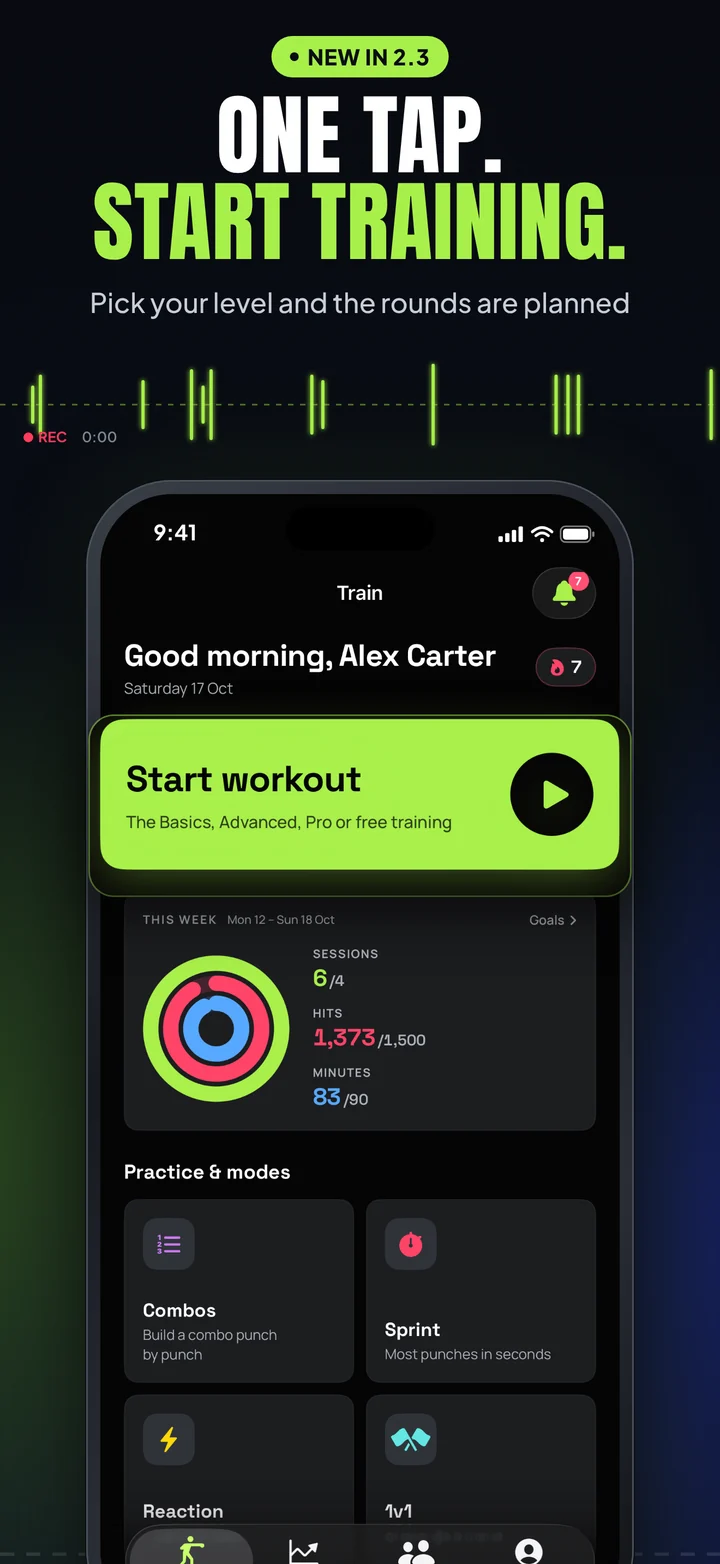
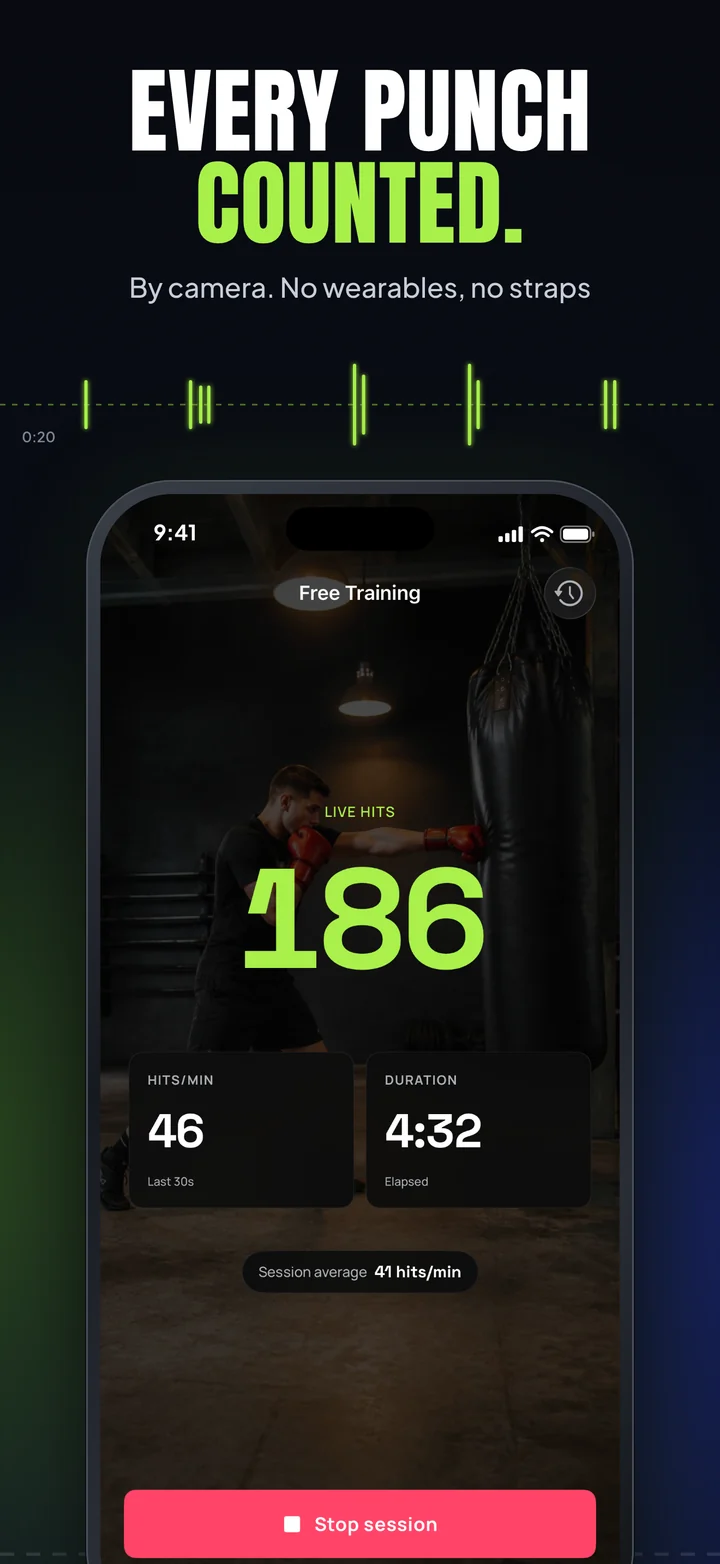
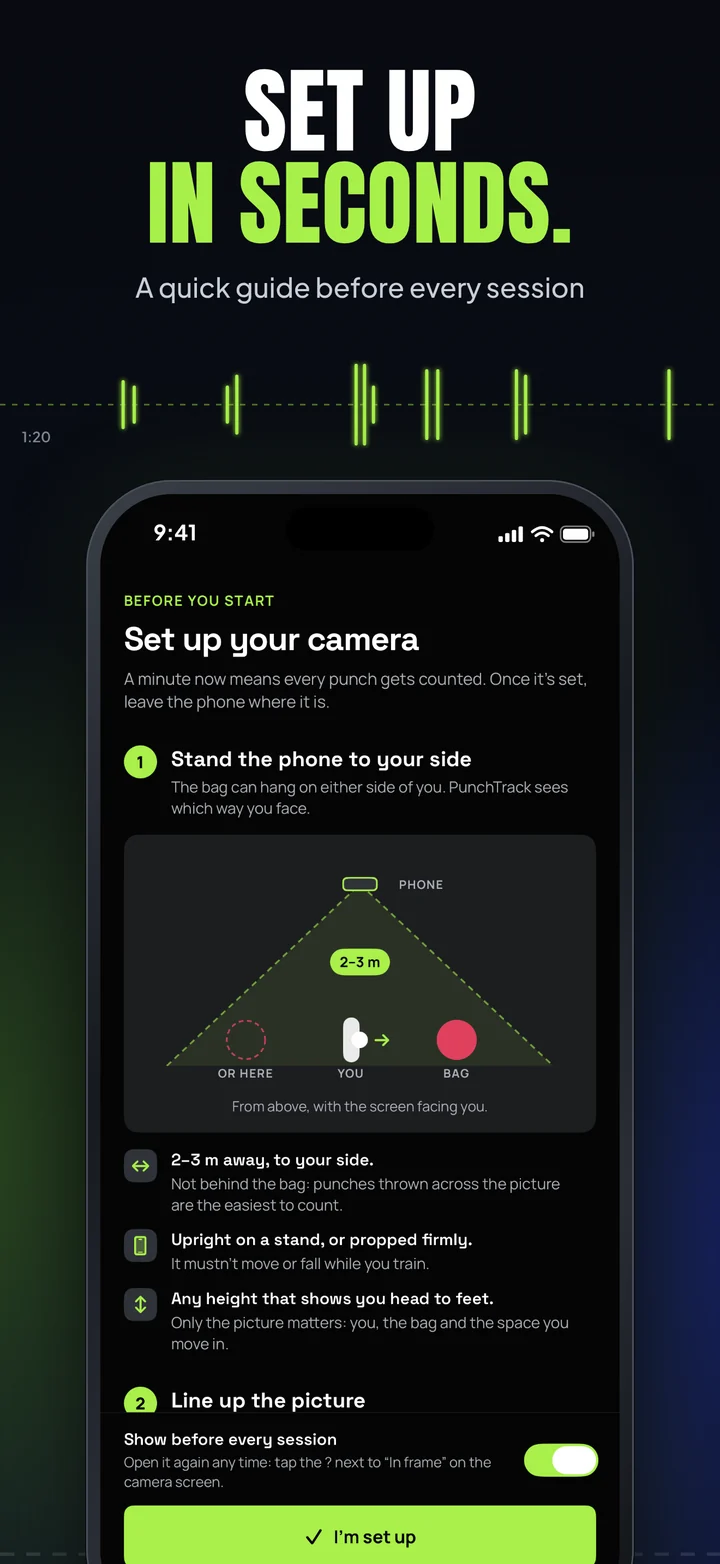
What changed in PunchTrack 2.0. Punches are now counted by the camera instead of by sound, sessions are filmed and kept on your iPhone (Section 4), and the microphone is used only for the sound in those videos. Sessions you saved with earlier versions keep the details they were saved with.
CS42.org ("we", "us", "our") built the PunchTrack app as a free application. This section explains what data the App handles, where it goes, and the controls you have over it.
1. Two Ways to Use PunchTrack
- Without an account ("Continue without account"). Everything (profiles, sessions, statistics, settings and session videos) is stored only on your device. Nothing is sent to our servers, and we collect no personal data at all.
- With a free account. Sign up with an email address and password, or with Sign in with Apple. Your training data is then backed up and synced to our cloud (see Section 2) and you can take part in the social features (see Section 3). Creating an account is always optional. Punch detection, workouts, drills, and analytics work fully offline either way.
2. Information We Collect (Account Users Only)
When you create an account, the following is stored in our cloud database, linked to your account. Only you can change it, except that authorised CS42 administrators can remove a workout that looks falsified and send you a note about it (Section 9). It can be read by you and, for the purposes in Section 9, by those administrators (see Section 8 for how it is protected):
- Account data. Your email address and your chosen unique username. Passwords are handled by Firebase Authentication; we never see or store your plain-text password. With Sign in with Apple, Apple provides a verified (optionally relayed) email address. We also record which version of the Terms & Conditions you accepted, and when.
- Notes from CS42, messages we send you in the app, such as a notice that a workout was removed.
- Fighter profiles, name, stance, and any optional fields you choose to fill in: gender, date of birth, weight, height, nationality, country of residence, Instagram/TikTok handles, and profile photo.
- Training data, session records (type, date, duration, punch counts, hits per minute, workout/drill details, including player names you type for 1v1 matches, and whether the camera or, for sessions saved by earlier versions, sound counted the punches) and reaction-drill statistics. Sessions saved by earlier versions keep any power breakdown they were saved with.
- App settings, such as your themes, sound and haptics, goals, reminders and sharing choices, so they follow you across devices. We also store a copy of your camera and recording settings (such as which camera, detection sensitivity and video quality) and your app version for support; it is not applied to your other devices.
- Not your videos. Session videos and their sound are never part of your account data. They are not uploaded, synced or included in backups (Section 4).
Sync is local-first: your device remains the source of truth, and changes are written through to the cloud when you are online.
3. Social Features & What Other Users Can See
The social features apply to accounts only. If you use PunchTrack without an account, you have no public presence of any kind and nothing in this section applies to you.
When you create an account you choose a unique username. From that point your public fighter card is discoverable by default, so other signed-in athletes can find you by your handle and see you on leaderboards. The app tells you this on the screen where you choose your username, and you can turn discoverability off at any time in Profile → Data & Privacy → Discoverability, doing so deletes your public card immediately.
Your fighter card shows: your username and display name, profile photo, nationality and residence flags, Instagram/TikTok handles (if you added them), headline training stats (total punches, punches counted by the camera, session count, streak, best punches-per-minute, this week's punches), the athletes you follow, and when you were last active. Instagram/TikTok handles appear while “Share social links” is on (on by default).
You stay in control:
- Discoverability toggle. On by default for accounts; turn it off and your card is removed, so other users cannot find or view it.
- Recent sessions. Sharing of your recent session summaries (up to the last 10) is off by default and has its own toggle.
- Age, weight, and height. Each is off by default with its own sharing toggle, and is only shown if you enable it.
- Leaderboards. Show your username, flag, and punch totals to other signed-in users while you are discoverable. From PunchTrack 2.0 the leaderboards (Season 1) rank only punches counted by the camera.
- Block & report. You can block other users and report inappropriate profiles; reports you submit are stored so we can act on them.
Public fighter cards are visible only to signed-in PunchTrack users, not on the open web.
4. The Camera, Session Videos & Sound
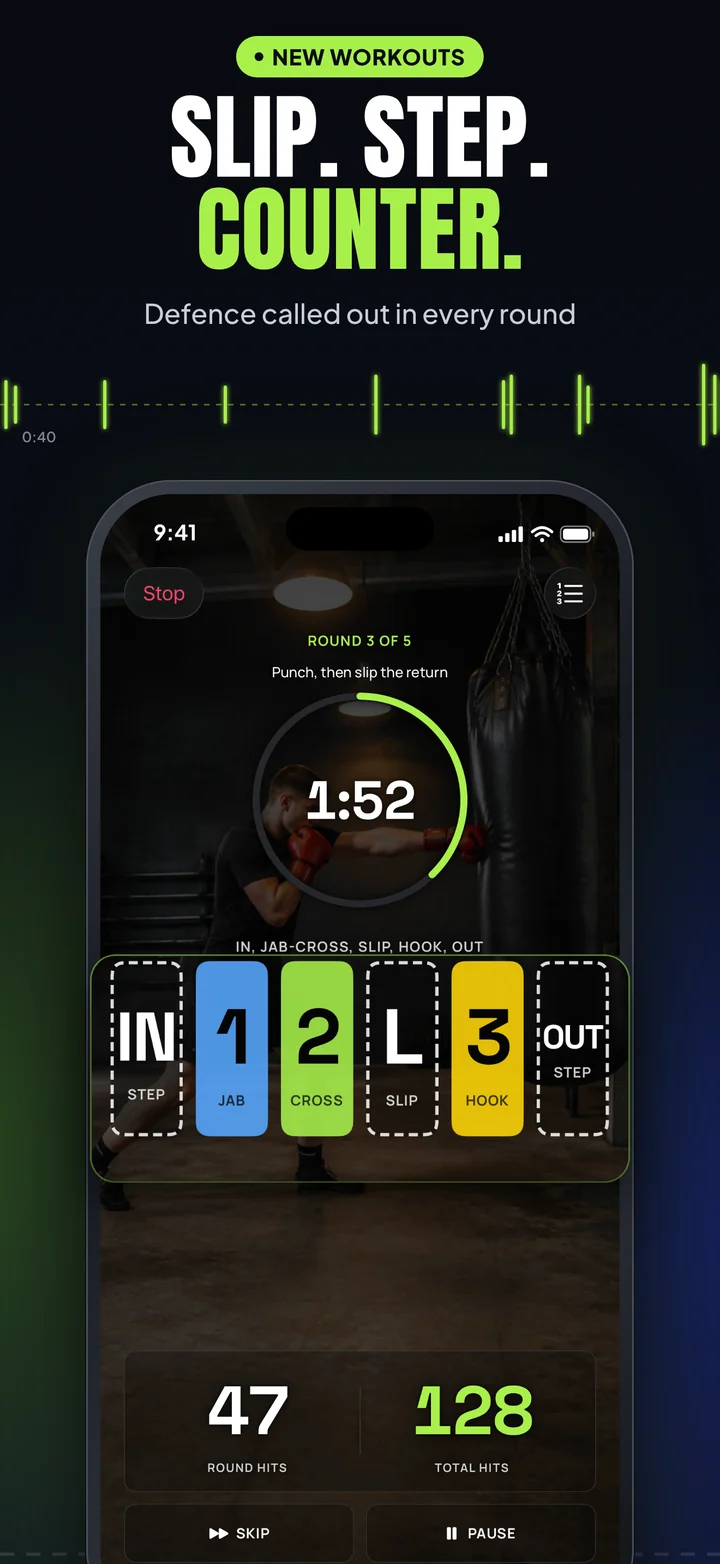
Counting punches. In PunchTrack 2.0 the camera counts your punches. Here is exactly how it works:
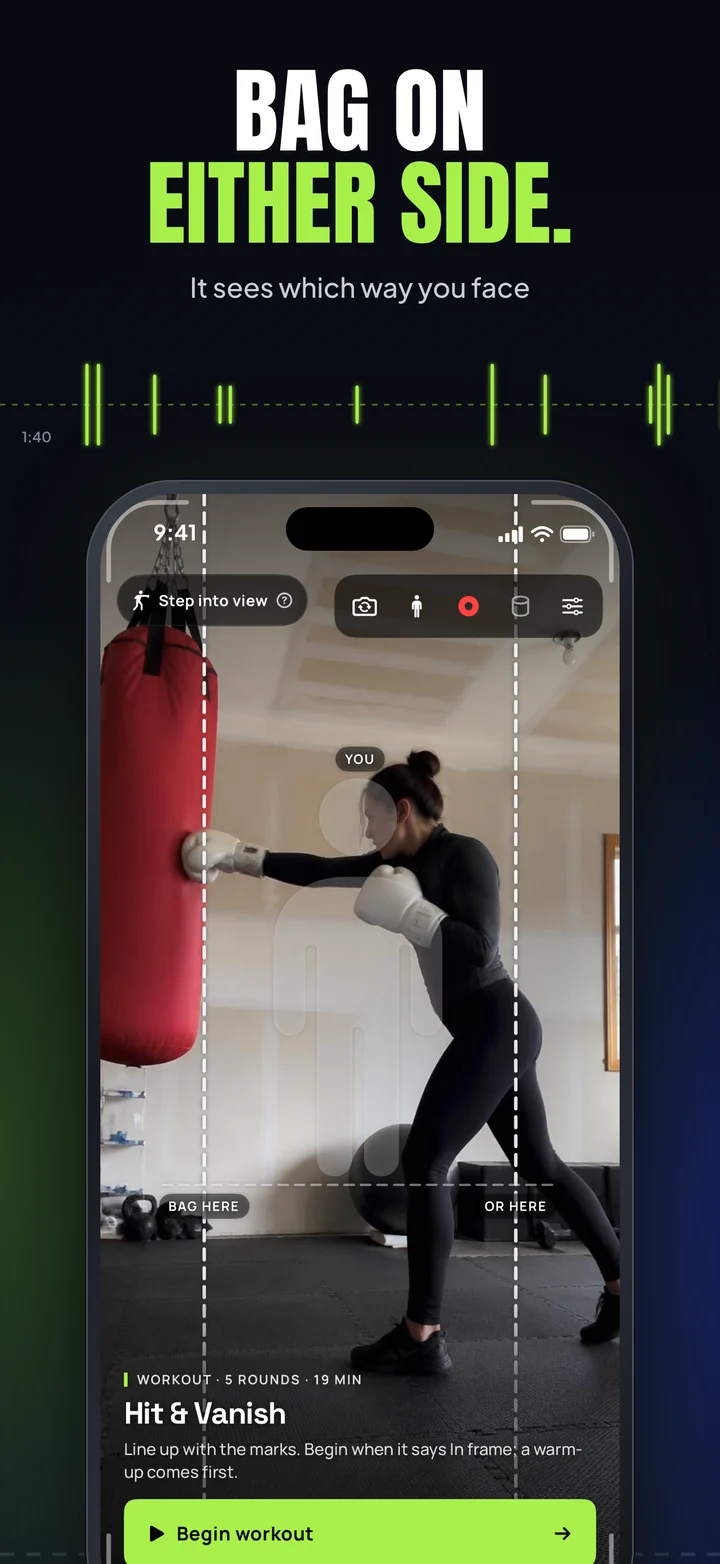
- When you set up a session, the App opens the camera you chose (front or back) so you can frame yourself and the bag.
- Each frame is analysed on your iPhone by Apple's Vision framework, which finds the position of your body (shoulders, elbows, wrists and so on). Nothing is sent anywhere for this.
- From those positions the App works out when a punch is thrown and which hand threw it. Only the result (the punch count and the session details) is kept in your session record.
- Frames are not kept for counting. The only pictures PunchTrack keeps are your session video, if recording is on (below).
- When the session ends, the camera stops.
PunchTrack no longer counts punches by sound. The microphone is not used for detection at all.
Session videos. PunchTrack films your sessions so you can watch them back:
- On by default. Each session is filmed by the camera that counts your punches and saved inside the PunchTrack app on your iPhone. You can film only workouts, or turn recording off, in Profile → Camera & Video.
- Kept for 3 days by default. You can choose 1 week, or until you delete them, in Camera & Video → Advanced. After that time a video is deleted from the app automatically, and you can delete any video sooner in Session Videos.
- Never uploaded. Videos are not sent to CS42 or Firebase, are not part of your cloud backup or your
.ptbackup export, and other users can never see them. A video leaves the app only when you choose to save it to your photo library or share it with the iOS share sheet; what happens to it there is governed by the app or person you share it with.
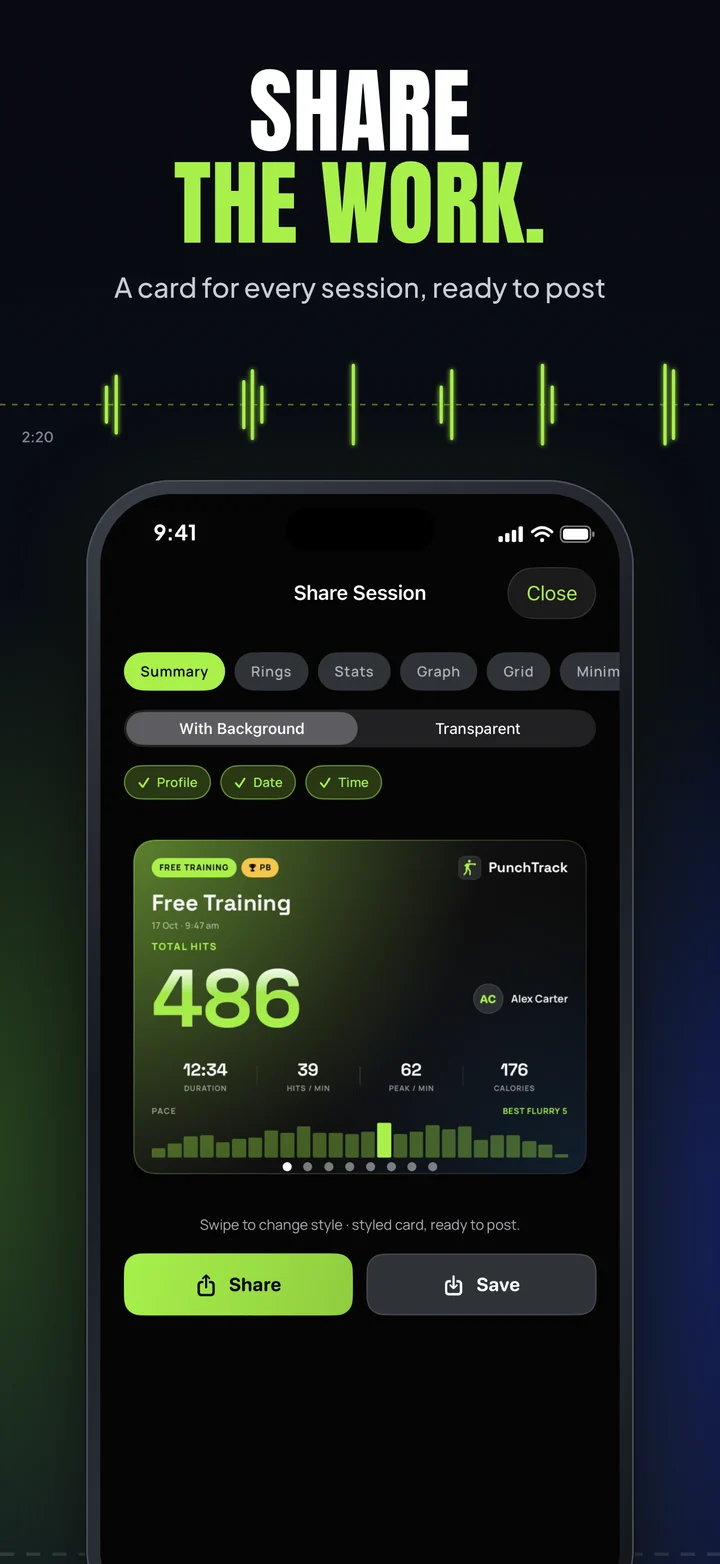
- Session details. If you turn on “Add the session details”, videos you save or share carry a bar with the PunchTrack name and logo and the details you pick: timer and round, combos, hit count, and, only if you choose them, your username and profile picture.
- Other people. Anyone in view of the camera can appear in your videos. Please let them know you are filming, and ask before you save or share a video that shows them (see the Terms & Conditions).
Sound in your videos (microphone). PunchTrack uses the microphone only to record sound with your session videos, such as bag thuds, the bell and the gym:
- Sound is on by default. The App asks for microphone access when you set up a session that will be filmed. If you refuse, or turn “Record sound” off in Camera & Video, videos are recorded silently and everything else works the same.
- The sound is saved only inside the session video, on your iPhone, and follows the video rules above. It is never uploaded or analysed.
- If a phone call or Siri takes the microphone, the video keeps recording without sound, and the sound comes back when the call ends.
5. Camera and Photo Library
PunchTrack 2.0 needs camera access to count your punches (Section 4); without it, the training modes cannot count. You can also use the camera, or a photo from your library, to set a profile picture. The photo is stored with your profile on your device; if you are signed in it is included in your cloud backup, and it appears on your public fighter card while your account is discoverable. You can skip the profile picture entirely and revoke these permissions at any time in iOS Settings.
When you save a session video or share card to your photo library, the App asks for permission to add to it. This permission only allows adding, not reading your library. The optional “Save to a PunchTrack album” setting keeps the videos you save together in an album; iOS lets an app make an album only with full photo library access, so the App asks for that access only if you turn this setting on. PunchTrack never reads, uploads or analyses the rest of your library.
6. Apple Health (Optional)
If you enable the Apple Health integration, PunchTrack writes your boxing workouts and estimated active calories to Apple Health. The App requests write-only access: it never reads any data from Apple Health, and your Health data is never sent to our servers. You can revoke this at any time in the Health app or iOS Settings.
7. Notifications (Optional)
Training reminders (a daily streak nudge and a Sunday weekly summary) are local notifications scheduled on your device. We do not send push notifications and no server is involved.
The Notifications screen inside the app (the bell on the Train and Social tabs) is not a push service either. Your device builds it from information this policy already covers: the public fighter cards of people who follow you (Section 3), your own sessions and badges, and notes CS42 sends to your account (Section 2). The list of badges you unlocked and when you first saw each follower are kept on your device only.
8. Where Your Data Is Stored & Service Providers
Cloud data for account users is stored with Firebase (Firebase Authentication and Cloud Firestore), a Google LLC service. Firebase processes this data on our behalf on Google Cloud infrastructure, which may be located in various countries. Data is encrypted in transit (TLS), and security rules ensure that only you can change your account data (apart from the workout removals and notes described in Section 9), and that only you and authorised CS42 administrators (Section 9) can read it. See Firebase's privacy documentation for details.
Firebase is our only service provider. We do not use any advertising networks or third-party analytics SDKs, and we do not sell, rent, or share your personal data with anyone else.
9. Access by CS42 Administrators
PunchTrack is operated by CS42. To run the service and keep it safe, authorised CS42 administrators can view the data of any account: account details (email address, username, sign-in method, and the Terms version you accepted), fighter profile details, training and session records, app settings, and social data such as follows, blocks, and reports. They use it only to:
- provide support and fix problems with your account or your data;
- investigate reports and suspected breaches of our Terms & Conditions, and moderate content;
- prevent fraud, leaderboard cheating, abuse, and security incidents;
- meet legal obligations and respond to lawful requests.
Administrators can view this data, and can delete a workout that looks falsified; when they do, you receive a note in the app explaining why. Access is limited to specific CS42 administrator accounts that our database security rules recognise, and is never used for advertising or sold. Decisions such as removing content or suspending an account are taken under our Terms & Conditions. If you use PunchTrack without an account, your data never leaves your device, so there is nothing for an administrator to see. Where data-protection law such as the GDPR applies, we rely on our legitimate interest in operating a safe, working service, and on legal obligations where they apply; you can object or ask questions at hello@cs42.org.
10. Permissions Summary
| Permission |
Required? |
Purpose |
| Camera |
Yes |
Count your punches on your iPhone and film your session videos, which stay in the app and are never uploaded. Also used if you take a profile picture. |
| Microphone |
No |
Record sound with your session videos. On by default; you can turn it off. Never used to count punches, never uploaded. |
| Photo Library |
No |
Used if you choose a profile picture from your library, or turn on the PunchTrack album for saved videos. |
| Add to Photo Library |
No |
Save the session videos and share cards you choose to export. Cannot read your library. |
| Apple Health |
No |
Write-only: saves workouts and estimated calories to Apple Health. Never read. |
| Notifications |
No |
Local training reminders you schedule. No push notifications. |
11. Analytics, Advertising & Tracking
PunchTrack contains no advertising and no third-party analytics or tracking SDKs. The only third-party components are Firebase Authentication and Cloud Firestore, used purely for sign-in and data sync. We do not "track" you in the sense defined by Apple's App Tracking Transparency framework. There is no cross-app or cross-website tracking, so the App Tracking Transparency prompt is never shown.
12. Children's Privacy
PunchTrack's training features are suitable for all ages, but creating an account and using the social features is not intended for children under 13 (or the minimum age for such services in your country). We do not knowingly collect personal information from children under 13; if you believe a child has created an account, contact us and we will delete it. Younger athletes can use the App without an account, in which case no data is collected, and we recommend adult supervision when training on a heavy bag and when recording session videos.
13. Data Retention & Deletion
You can delete your data at any time:
- Delete your account, Profile tab → Account → Delete Account. This permanently removes your cloud data (account, profiles, sessions, follows and blocks, notes from CS42, public fighter card, and username) and erases the app's data, including session videos, from your device.
- Sign out. Signing out removes your profiles, sessions, settings and session videos from the app on that device (a cached copy can stay in the app's storage until you sign in again or delete the app); your cloud copy is restored the next time you sign in.
- Without an account, deleting individual profiles in the app, or deleting the app itself, removes all locally stored data. Nothing exists on any server.
- Session videos are kept in the app for 3 days by default (or 1 week, or until you delete them, if you choose), then deleted automatically. Deleting the app also deletes them. Videos you saved to your photo library or shared stay where you put them.
We retain cloud data only for as long as your account exists. Two kinds of moderation record are kept after an account is deleted: reports filed by or about the account, and a note of any workout CS42 removed (account and workout IDs and the date only), so that we can finish acting on them and keep a record of moderation decisions. You can also export a full backup of your data (a .ptbackup file) from the app at any time.
14. Your Rights
If you use PunchTrack without an account, we hold no data about you. If you have an account, you can exercise your rights directly in the app: access and export your data (backup export), correct it (edit your profile), and delete it (Delete Account). If you are in a jurisdiction with applicable privacy laws (GDPR, CCPA, and similar), you may also contact us at the address below to exercise these rights, object to processing, or lodge a complaint with your supervisory authority.
15. Data Security
Local data, including session videos, is protected by iOS's app sandbox and device encryption. We recommend keeping your device updated and using a passcode or biometric lock. Cloud data is encrypted in transit and protected by security rules, so other users can never read your private data; only you and authorised CS42 administrators (Section 9) can. Authentication is handled by Firebase Authentication; we never store plain-text passwords.
16. Apple App Store
When you download PunchTrack from the App Store, Apple may collect certain information as described in Apple's Privacy Policy. This data collection is governed by Apple and is outside our control.
17. Changes to This Policy
We may update this Privacy Policy from time to time. We will notify you of any changes by posting the new policy on this page and, if the change is material, mentioning it in the app's release notes. You are advised to review this Privacy Policy periodically.
18. Contact Us
If you have any questions or concerns about this Privacy Policy, contact us at hello@cs42.org.
Last updated: October 10, 2026 (PunchTrack 2.0)