You are responsible for the documents you edit, sign and send. Edit Text and Whiteout hide content from view only: the original text stays in the file, so they are not redaction. Keep backups of documents that matter.
1. Acceptance of Terms
By downloading, installing or using the 42 PDF Editor application ("the App"), published by CS42.org ("we", "us", "our"), you agree to these Terms and Conditions. If you do not agree, please do not use the App.
2. Description of Service
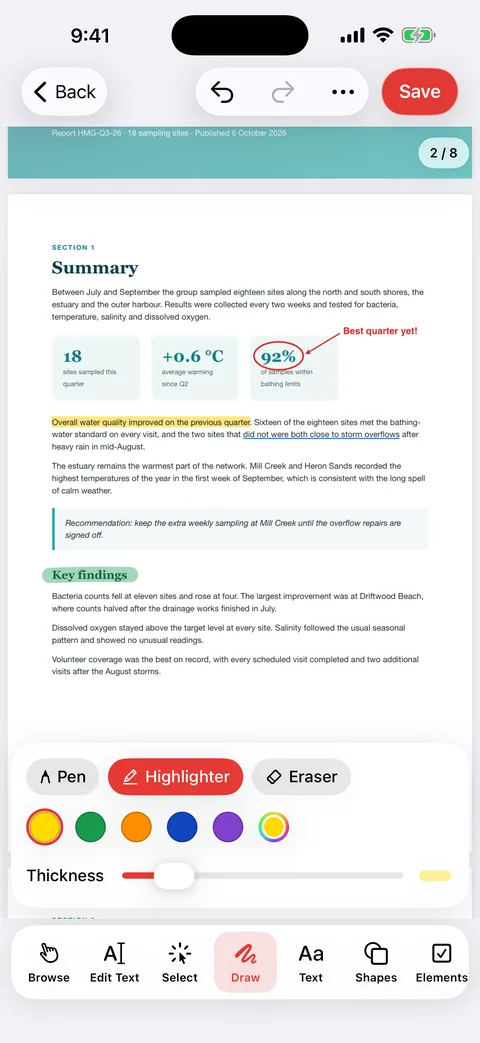
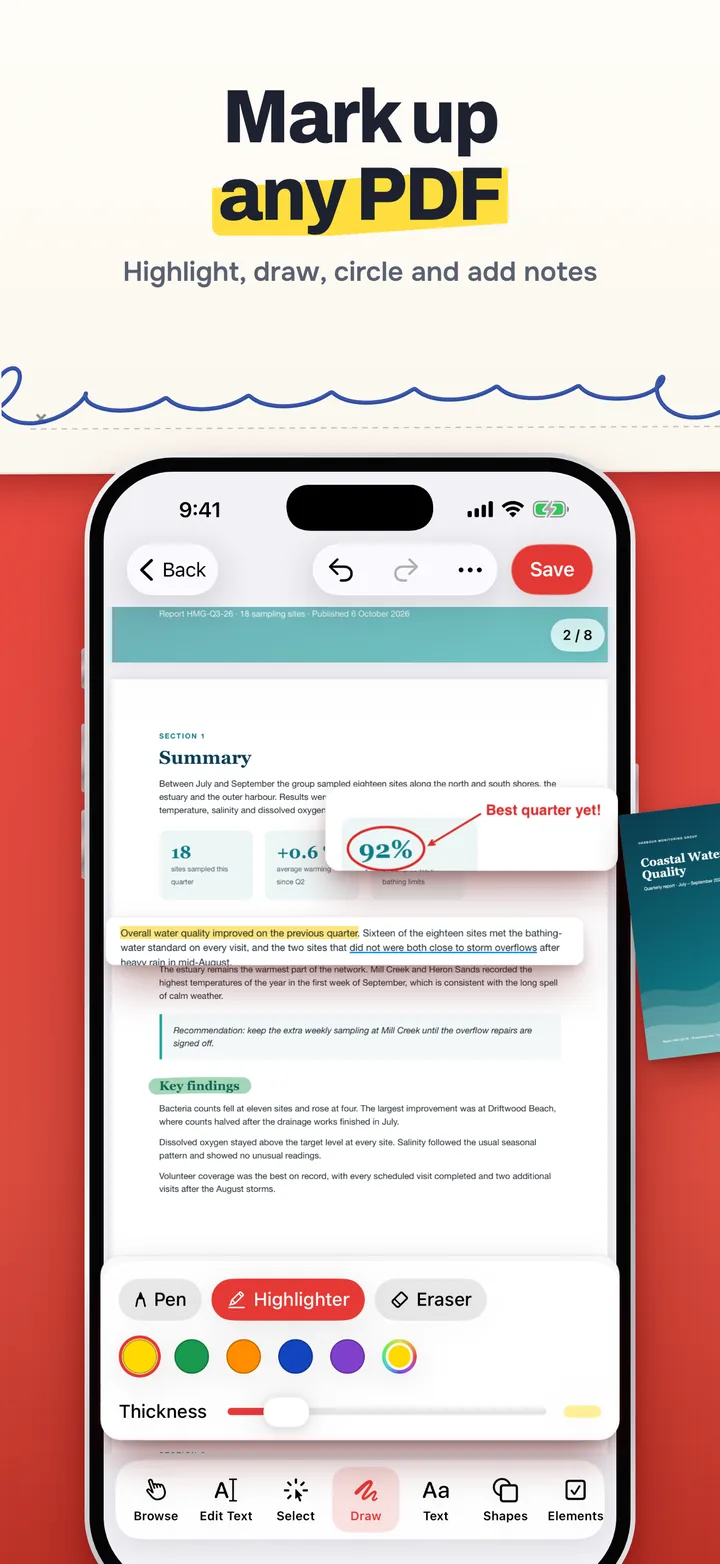
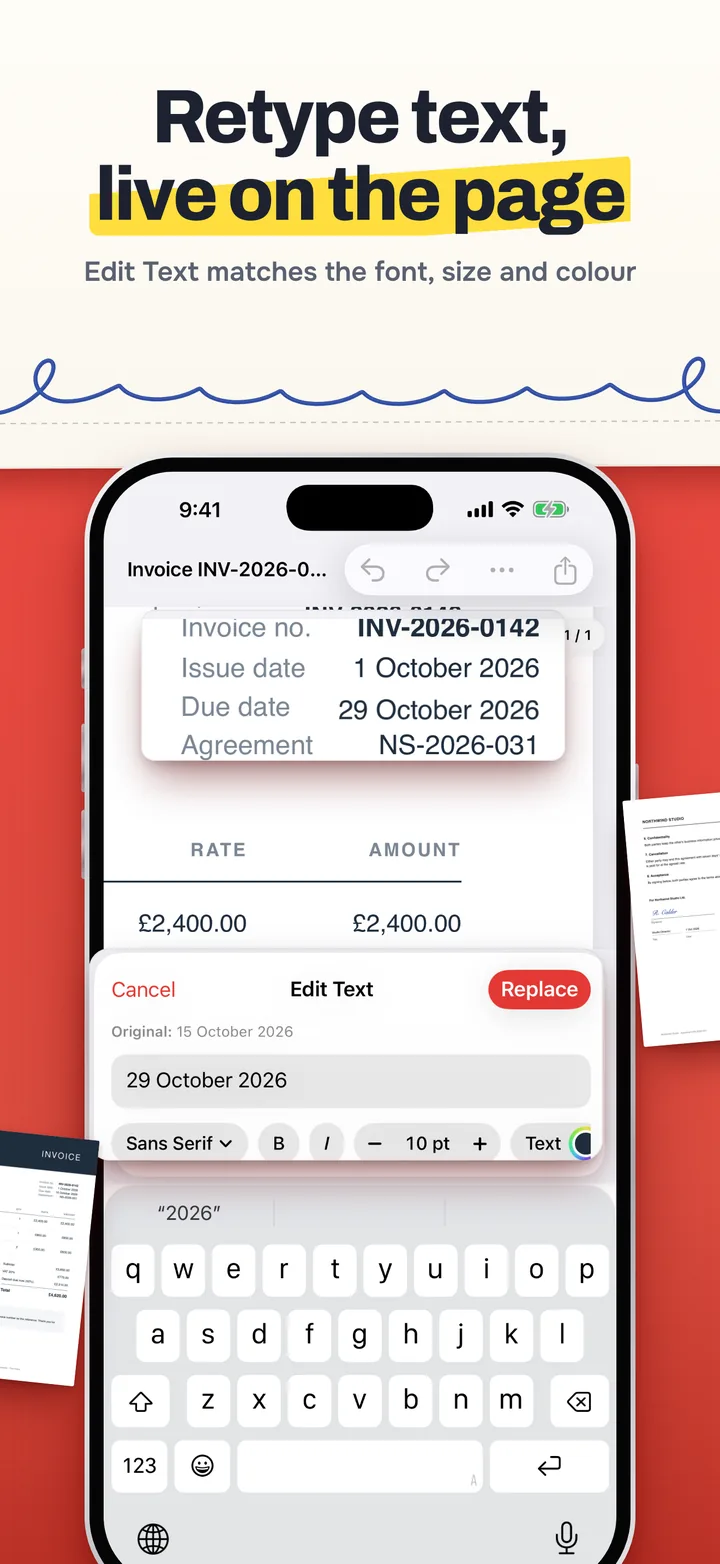
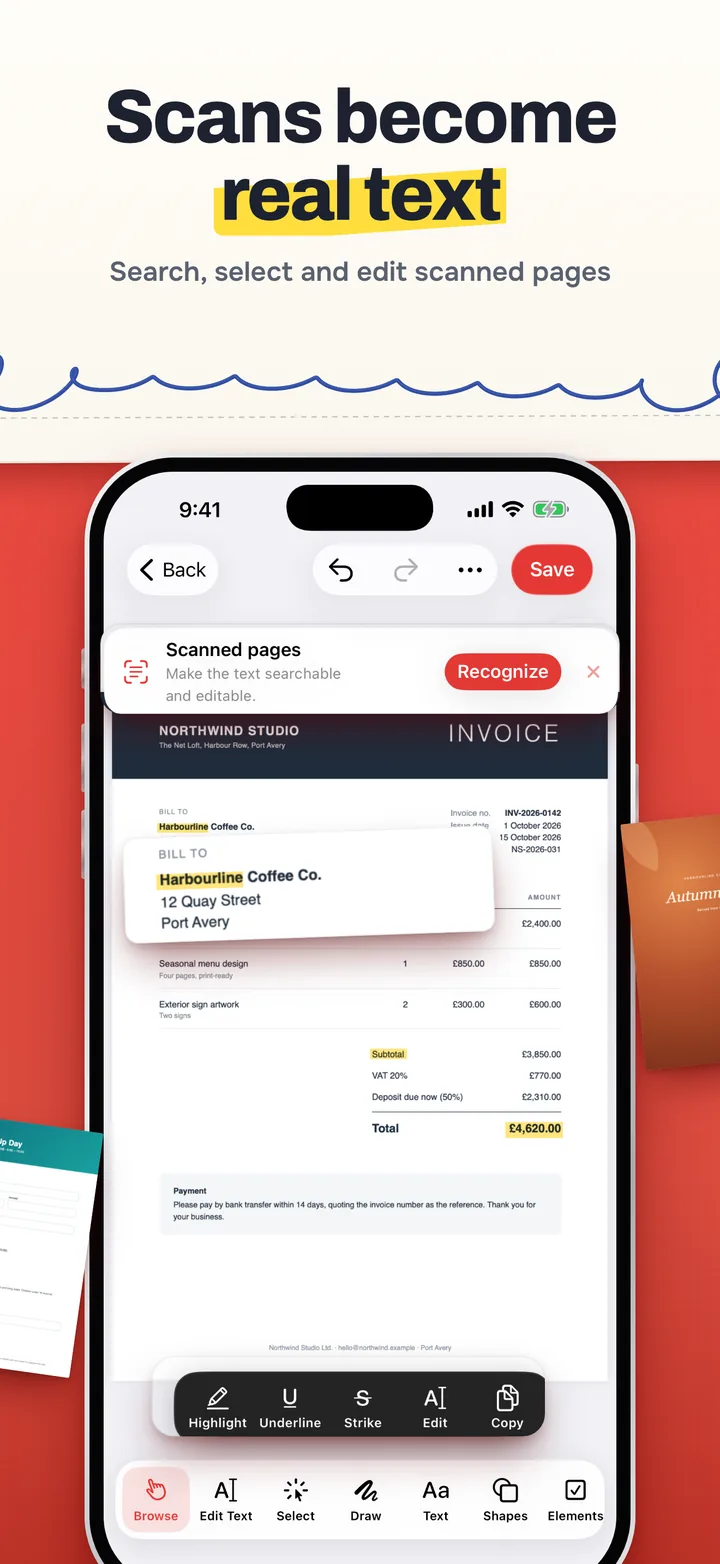
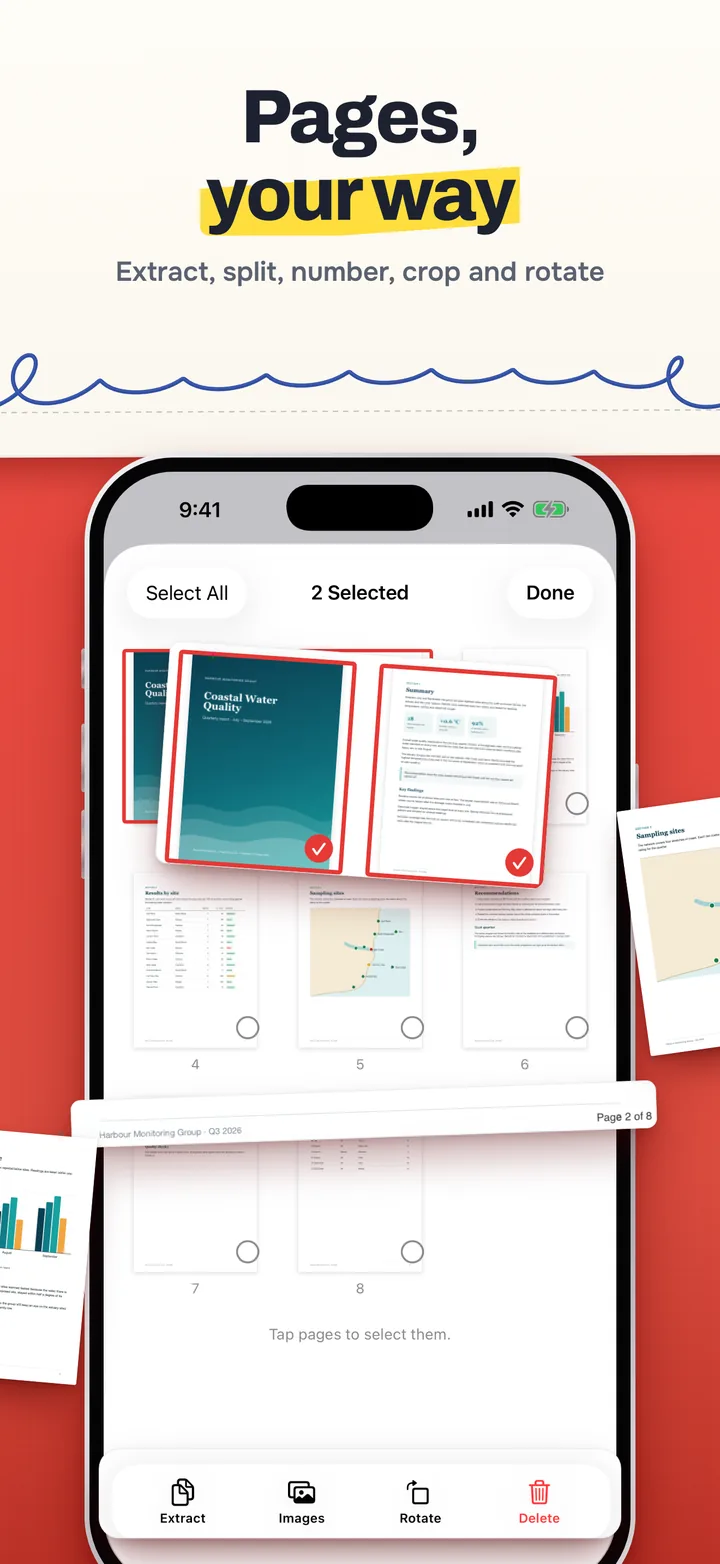
42 PDF Editor is a free application for reading and editing PDF documents on iPhone and iPad. It lets you annotate, fill in, sign and stamp PDFs, retype text, make scanned pages searchable with text recognition, add watermarks, images and page numbers, rearrange, crop, split and extract pages, make a PDF smaller, scan paper documents with the camera, create PDFs from photos, merge PDFs, set passwords, convert Word (.docx) documents to PDF and PDFs to Word, export pages as images, and save, share and print the result. All processing happens on your device.
3. Licence
We grant you a personal, non-exclusive, non-transferable, revocable licence to use the App on Apple devices you own or control, in line with the Apple Media Services Terms and Conditions. We retain all rights not expressly granted.
4. Your Documents and Your Responsibility
The documents you open, create and edit with the App are yours. We claim no ownership of them and, because they are never sent to us, we have no access to them. You are responsible for their content, for having the right to change, sign and share them, and for checking every document before you sign, send or submit it.
5. Signatures and Stamps
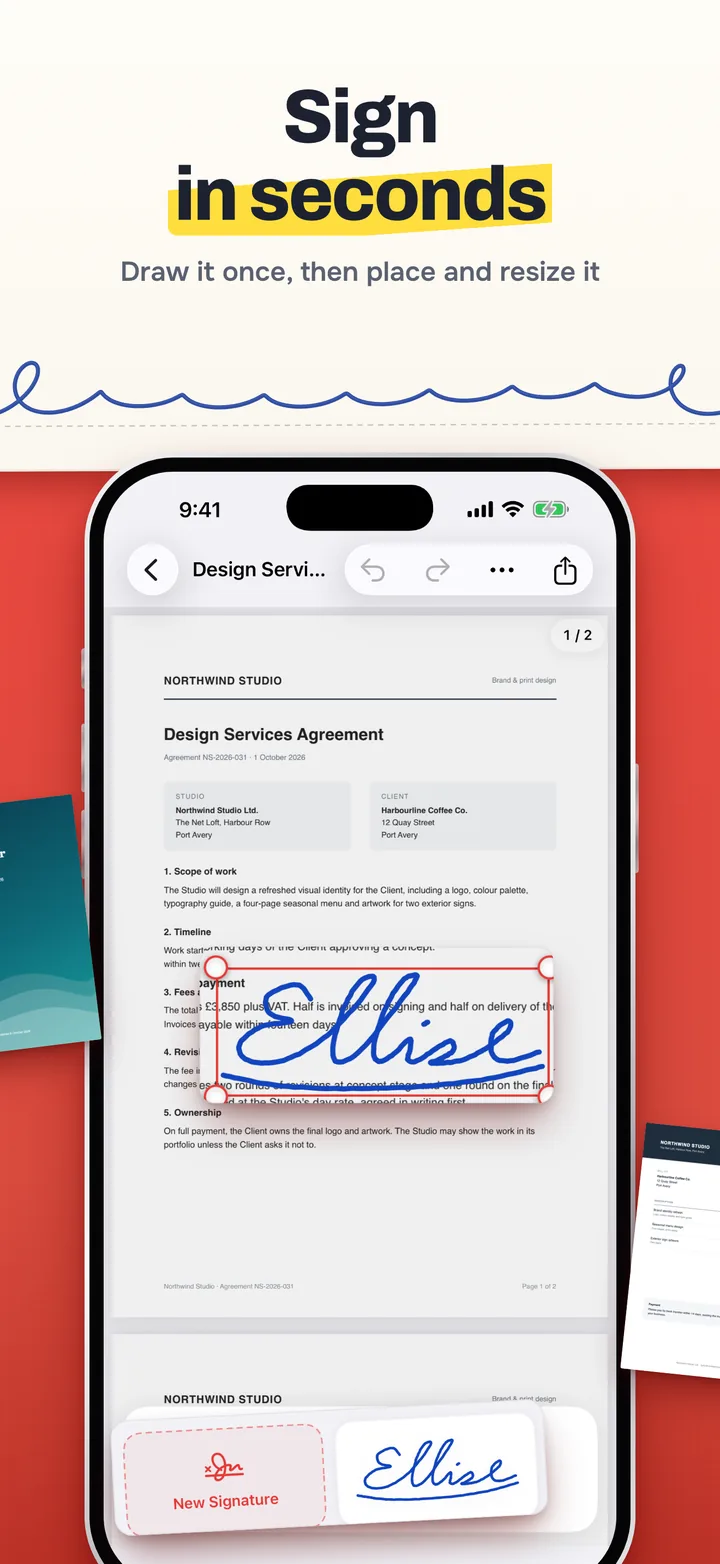
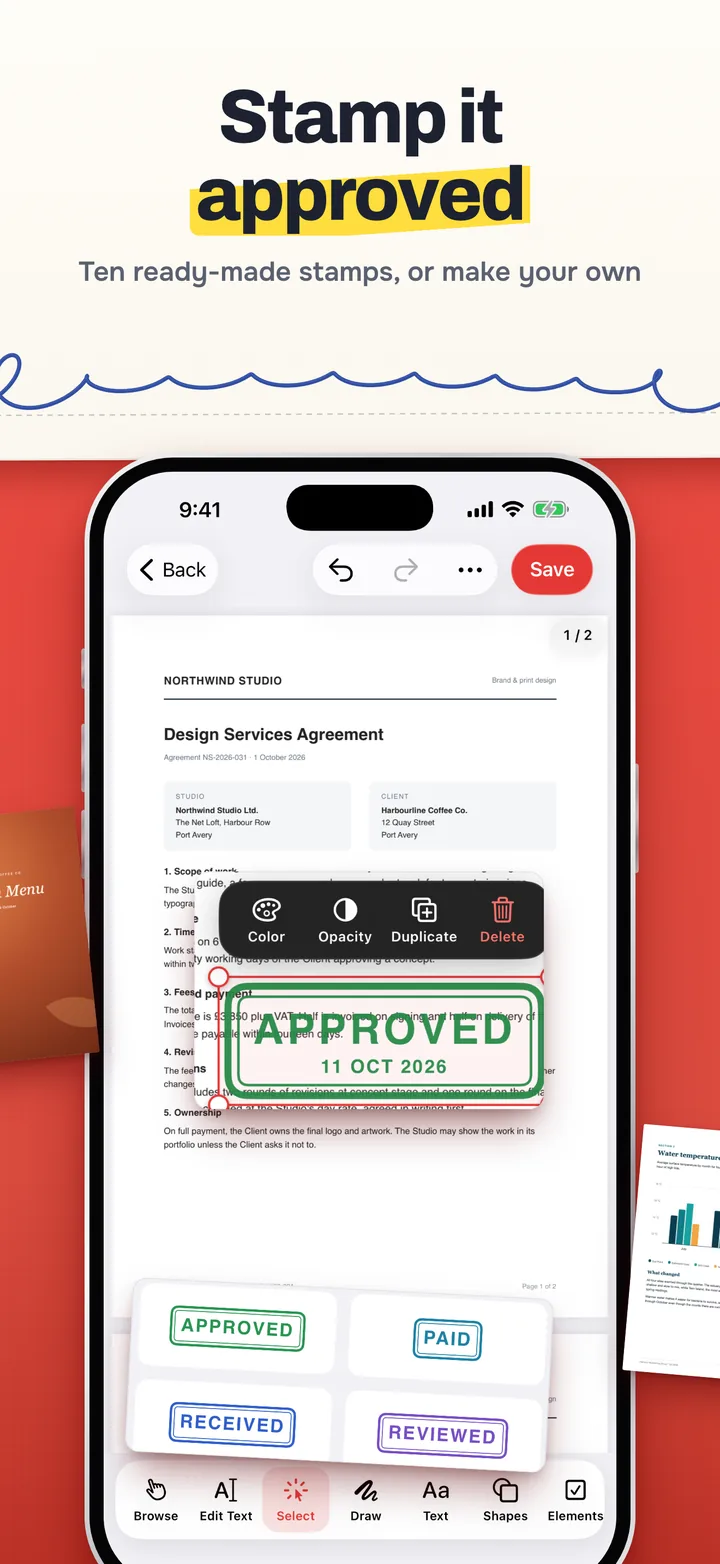
Signatures you place with the App are drawings of your handwritten signature. They are not certificate-based digital signatures: the App does not verify anyone's identity and does not certify a document. Whether a signed document is accepted, and what legal effect a signature has, depends on the people and laws involved. Only sign documents you are entitled to sign, and only with your own signature. Stamps such as Approved or Paid are marks you place on the page: they do not record or prove that anything was approved, paid or received, so use them only where that is true.
6. Edit Text and Whiteout Are Not Redaction
Edit Text covers the original line with a patch in its background colour and places the new text on top. Whiteout covers part of a page. In both cases the original text is still inside the file underneath: it can be found by search, copied, and read by other software. Saving a flattened copy does not remove it either. Do not use these tools to hide confidential or personal information. Use a dedicated redaction tool for that.
7. Conversions and Text Recognition
Converting between Word and PDF, and reading scanned pages with text recognition, are approximate. Layout, fonts and line breaks can change, some content is not converted, and recognised text can contain mistakes. Recognize Text adds the words it reads to the page as invisible text, so search, copy and other apps see what was recognised, mistakes included. Check the result before you rely on it.
8. Saving, Backups and File Loss
The App saves your changes to the original file when you tap Save, when you choose Save as you leave a document, and automatically when the App goes to the background with unsaved changes. Save a Copy leaves the original unchanged. Watermarks, images and page numbers become part of the page content when they are placed, and undo can remove them only until the file is closed. After Reduce File Size, Replace This File overwrites the original with the smaller version. Deleting a file in the App removes it from the device, and the App cannot undo that. Keep backups of documents that matter. We are not responsible for lost, damaged or altered documents, including those caused by an interrupted save, a damaged PDF, a file provider's syncing, or a forgotten password.
9. Passwords
A password you add protects the PDF with the encryption the PDF format provides. We never see or store it, and we cannot recover it. If you forget it, the document cannot be opened.
10. Third-Party Services
iCloud Drive, Dropbox and other file providers, Microsoft Word, printing and the apps you share to are run by others under their own terms and privacy policies. Their syncing, availability and handling of your documents are outside our control.
11. Acceptable Use
- You shall not use the App to forge or falsify documents, signatures or stamps, to sign or stamp on someone else's behalf without their authority, or to misrepresent anyone.
- You shall not use the App to remove or work around protection on documents you are not entitled to open or change.
- You shall not reverse-engineer, decompile or disassemble the App, except where that restriction is prohibited by law.
- You shall not use the App for any unlawful purpose.
12. Availability and Changes
We may add, change or remove features at any time, and we may stop supporting the App.
13. Disclaimers
The App is provided "as is", without warranties of any kind, express or implied, including fitness for a particular purpose and uninterrupted or error-free operation. We do not warrant that the App will open, display, edit, convert or save every document correctly.
14. Limitation of Liability
To the fullest extent permitted by law, CS42.org is not liable for indirect or consequential loss arising from your use of the App, including the loss or corruption of documents, information exposed by text you believed was hidden, or rejected or delayed submissions. Nothing here limits liability that cannot lawfully be limited.
15. Termination
You may stop using the App at any time by deleting it. This licence ends automatically if you breach these terms.
16. Governing Law
These terms are governed by the laws applicable at the developer's place of establishment, without regard to conflict-of-law principles.
17. Changes to Terms
We may update these terms. The dates at the top change when we do, and continued use after an update means you accept the revised terms.
18. Contact
If you have any questions about these terms, contact us at hello@cs42.org.
Last updated: October 11, 2026