PixelThat
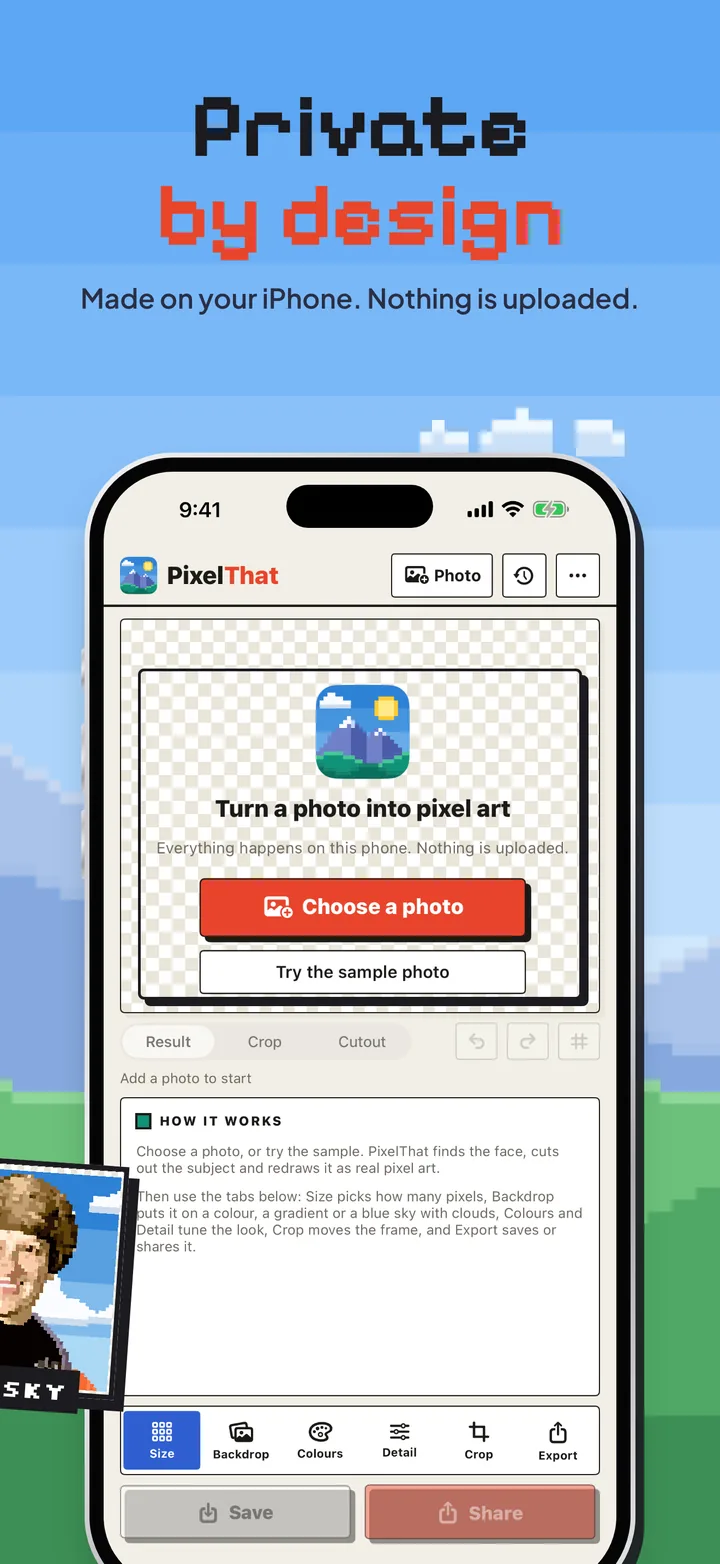
Photos into pixel artPoint it at a photo and get a crisp pixel art avatar. It finds the face, frames it, lifts the subject off the background and redraws the lot in a handful of colours. All of that happens on your iPhone, and nothing is uploaded anywhere.
iPhone and iPad · iOS 17 or later · Free · No account
PixelThat is live on the App Store
The testing is done and the app has shipped. PixelThat is out now for iPhone and iPad. Free, with no ads and nothing to buy inside it.
Free · iOS 17.0 or later
View on the App StoreApp information
Quick facts about PixelThat for iOS
About PixelThat
What is PixelThat?
Pixel art looks simple, which is exactly why shrinking a photo does not work. Scale a face down to 32 pixels and you get mush. So PixelThat does what a pixel artist would do. It finds the face and frames it the way an avatar is framed, separates the subject from the background so the edges stay clean, flattens the colours to a small deliberate palette taken from the picture itself, and only then lays down the pixels.
Key features
What you can do with it
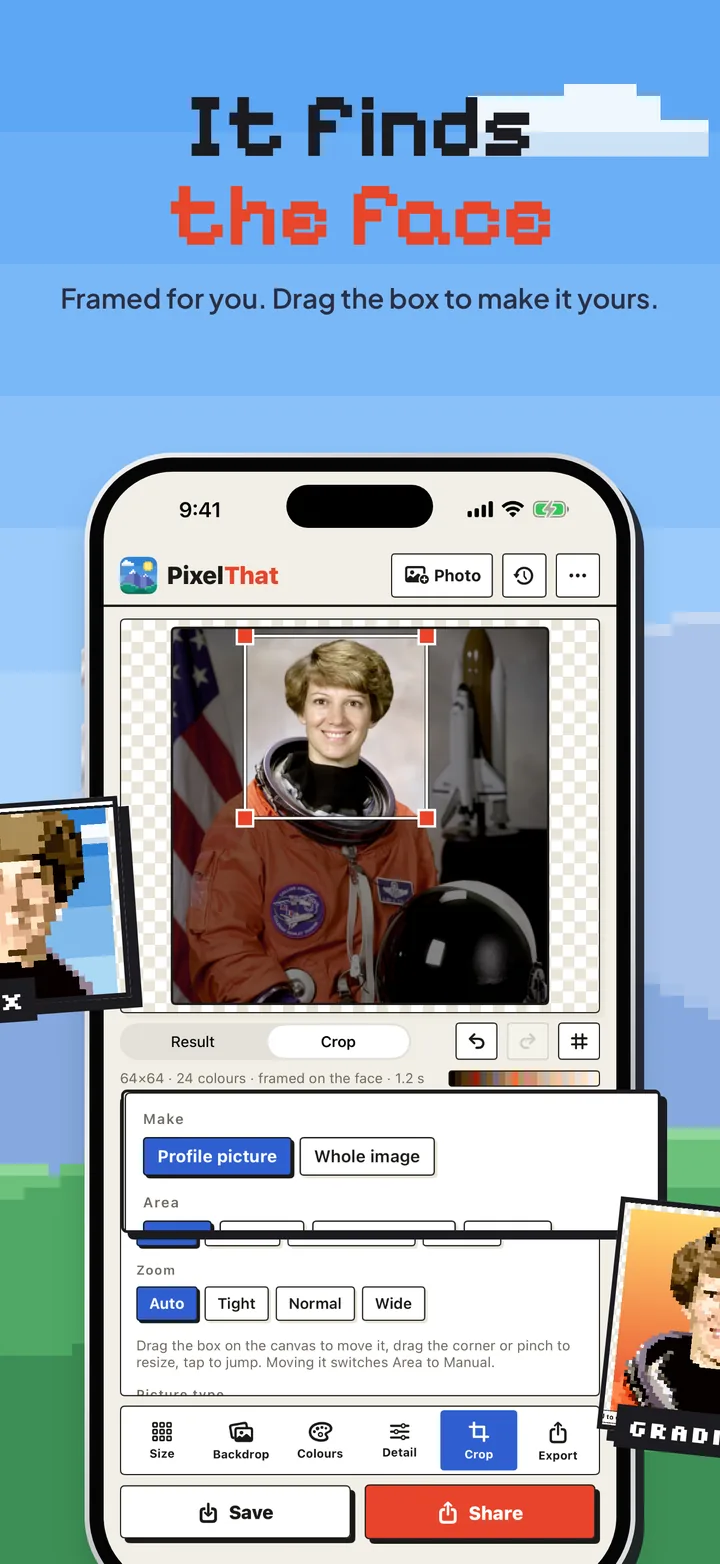
Avatars that find the face
Auto framing puts the head where an avatar's head belongs. Or drag the selection box yourself. Move it, pinch it, tap to jump, and the result follows.
Backgrounds on your terms
Transparent, a flat colour, a two-colour gradient, a pixel-art blue sky with clouds, or keep the photo. The cutout has a threshold, grow and shrink, and a live preview when it needs a nudge.
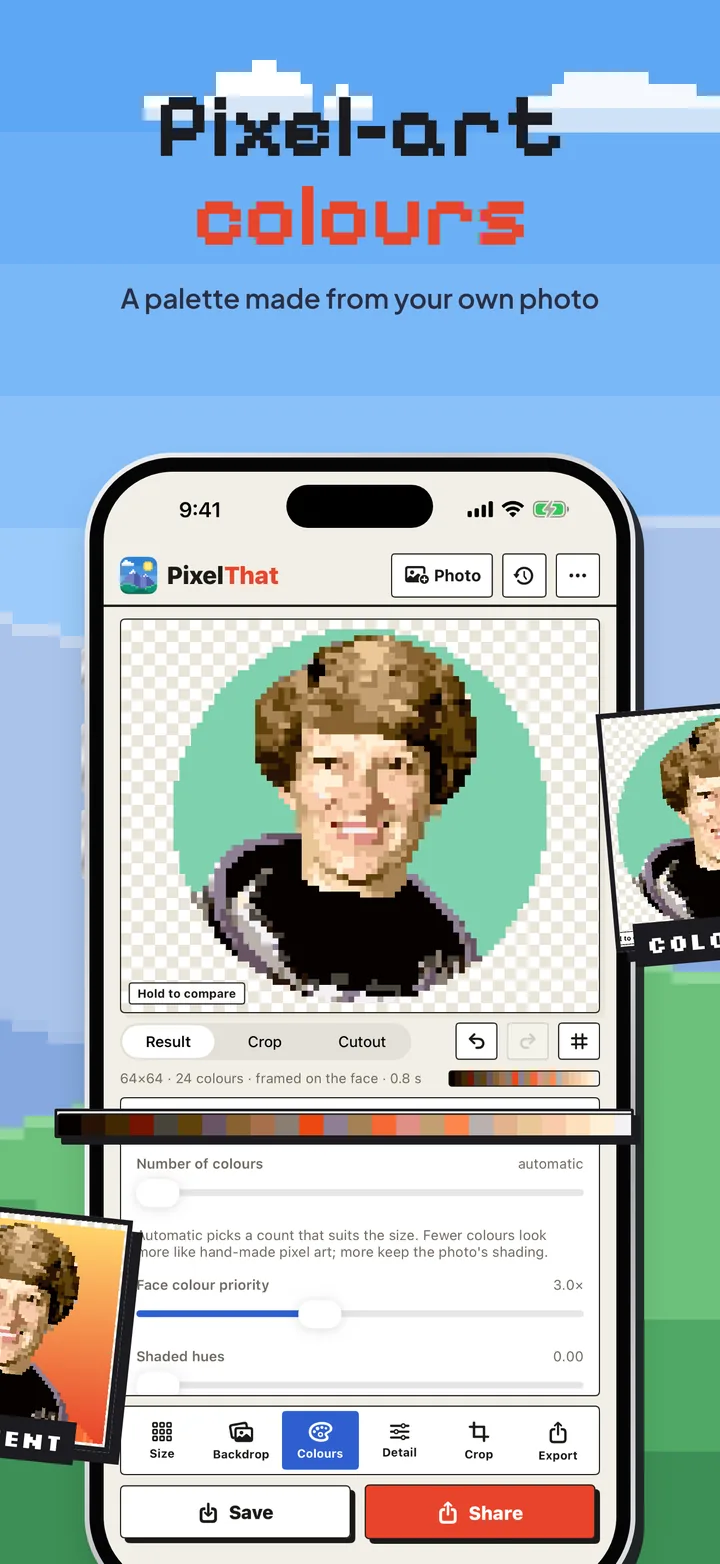
Palettes worth keeping
A palette built from your own picture, with faces weighted so skin tones survive, and a slider for how many colours. You can also paste in your own hex colours.
ASCII art too
Switch the same photo to characters: classic, colour, blocks, Braille dots or your own words. Copy it as text, save it as a picture, or turn a video into a short looping one.
Recents that remember
Every picture you keep is filed with the settings that made it. Tap it later to put those same settings on a different photo. That is how you get a set of avatars that match.
Nothing leaves the device
No account, no analytics, no network. Your photos are read, turned into pixels and put back down again, all on your phone.
More in the app
- Whole image mode keeps the picture's shape
- Sizes 8 to 256, or any width from 4 to 512
- Auto, tight, normal and wide framing presets
- Fine zoom, pan and mirror
- Square, rounded and circle avatars
- A frame of 1 to 4 pixels, in any colour
- Outline outside or inside the subject
- Floyd Steinberg and ordered 2×2, 4×4 and 8×8 dithering
- Contrast, saturation, brightness and gamma
- Auto levels and ink edges
- Adjustable clouds in the pixel-art sky
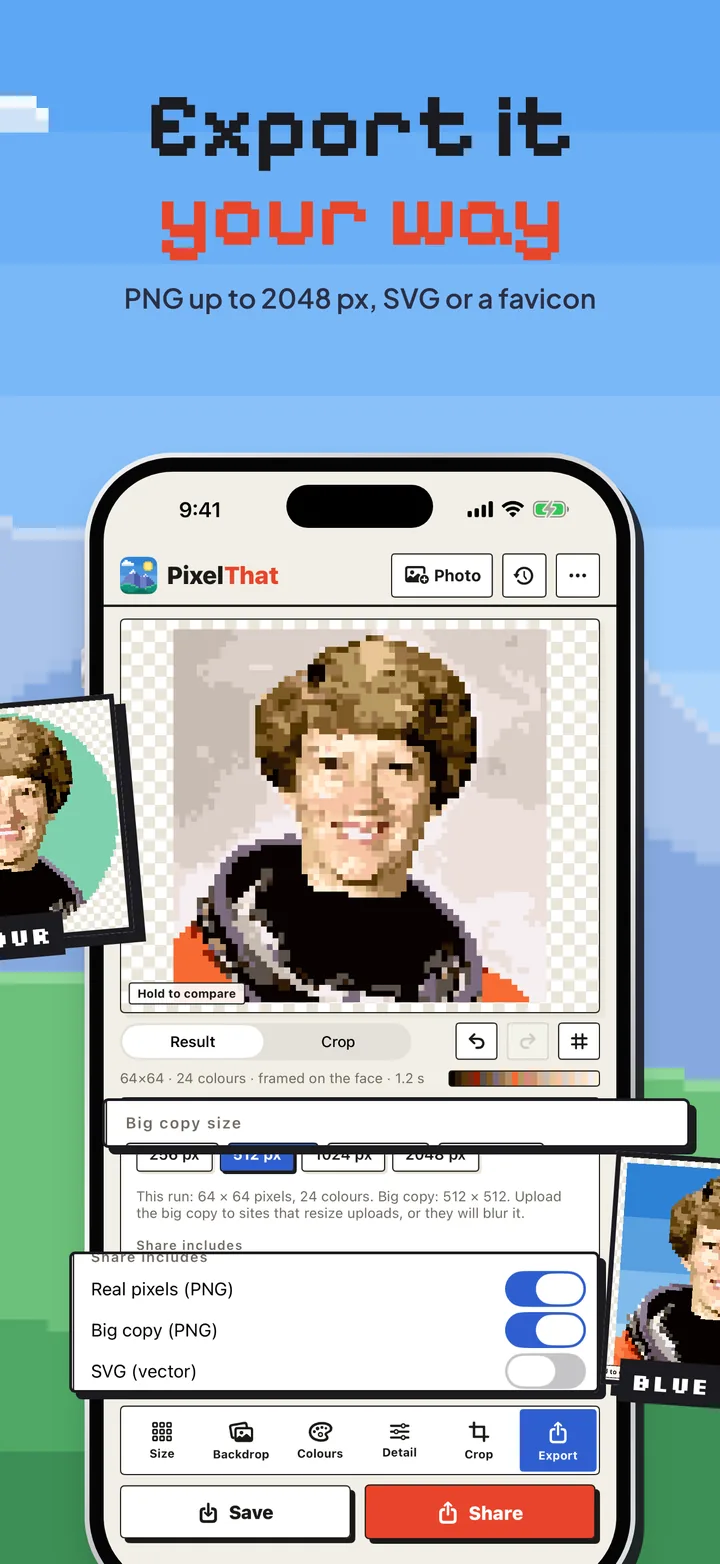
- Save the enlarged copy to Photos, or share the real pixels, the enlarged copy, SVG, ICO and palette files
- ASCII art from videos, trimmed in the app
Screenshots
The App Store set is one continuous picture, so keep swiping. Real screens from the app, real pixel art beside them.
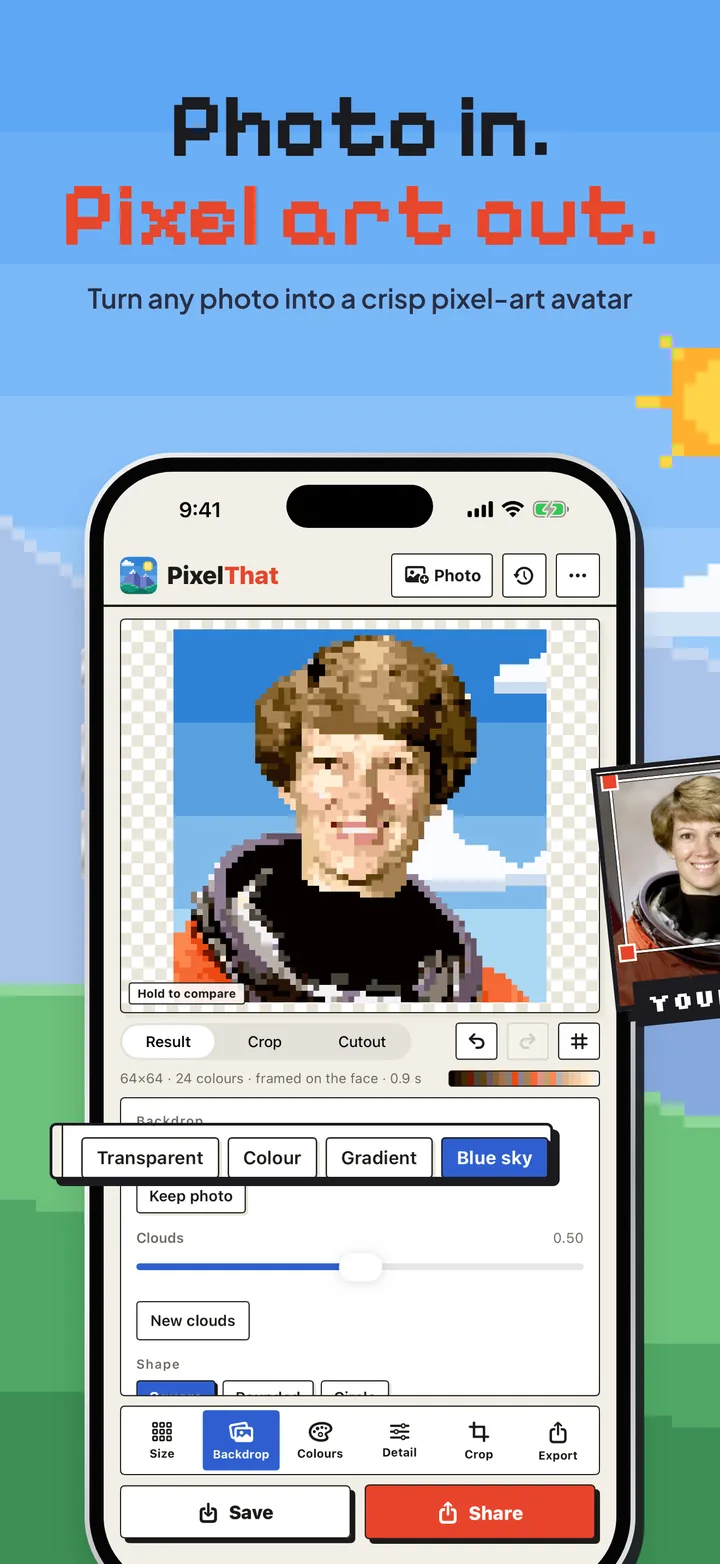
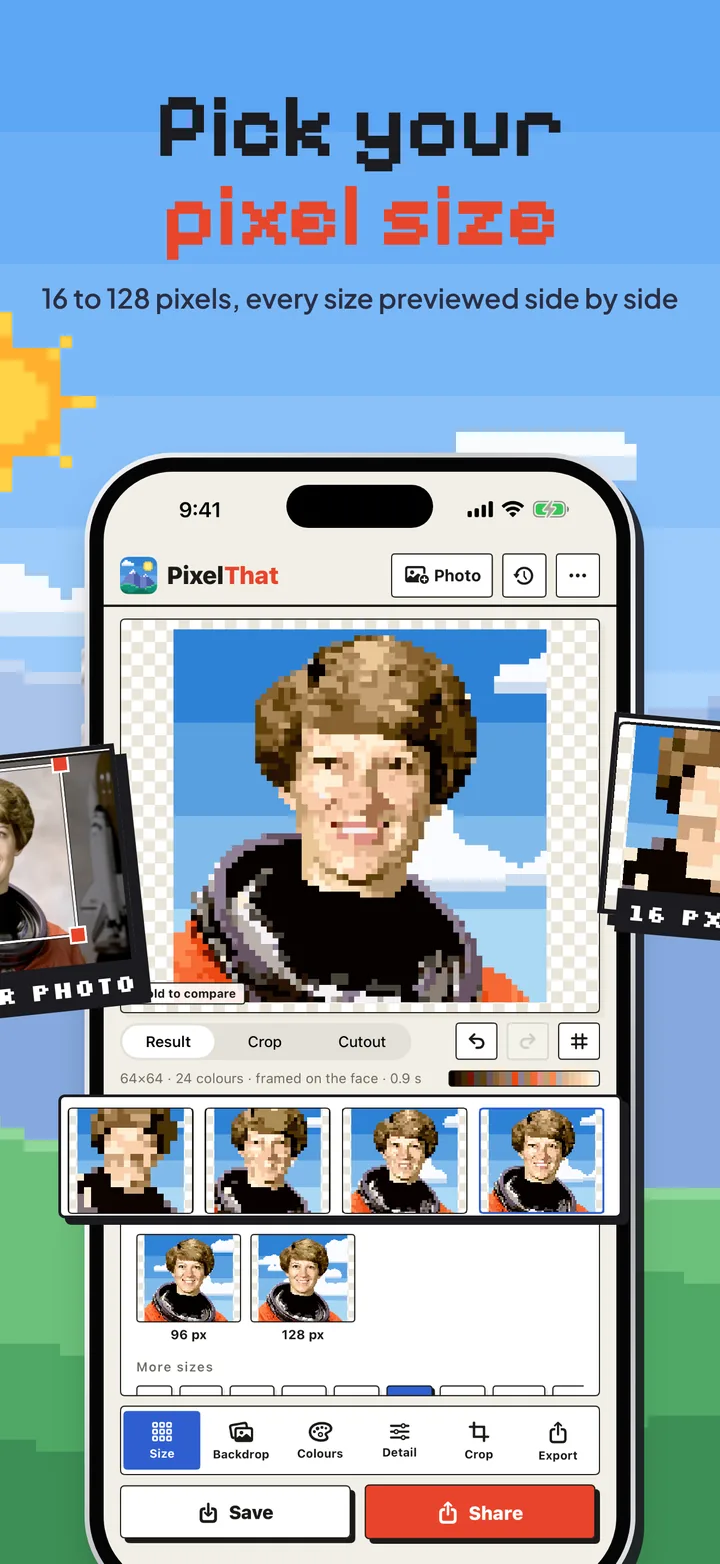
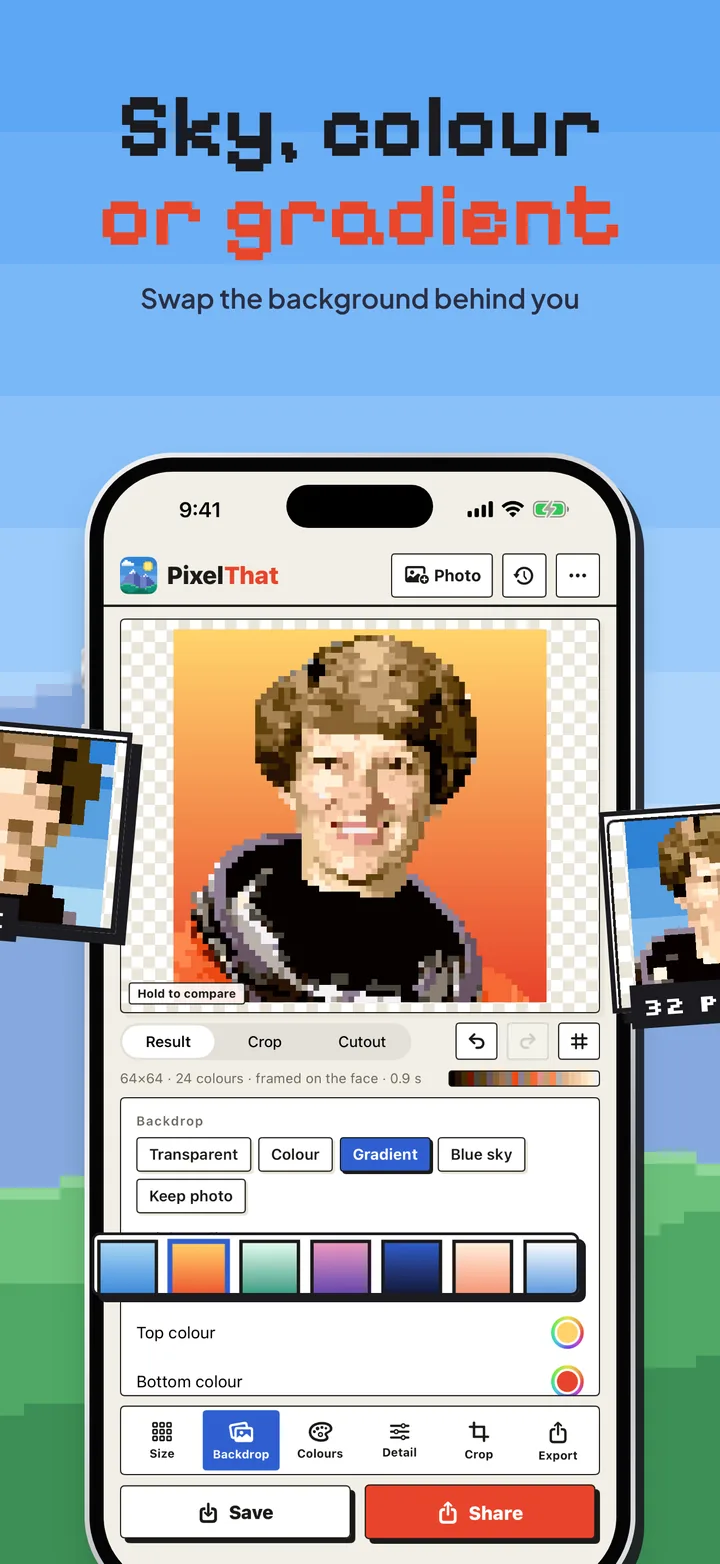
Swipe or scroll sideways: each panel picks up where the last one ends.
Privacy
The short version
PixelThat collects nothing. There is no account, no analytics, no advertising identifier and no networking code in the app at all. Your photos are read, turned into pixel art and saved back again, all on your own device.
- Photos you choose are processed on the device and never leave it.
- Kept pictures and their settings live in the app's own storage on your phone. Clearing them in the app, or deleting the app, removes them.
- Permissions are limited to reading the photo you pick and adding a finished picture to your library.
- No third-party SDKs are bundled: no trackers, no crash reporters.
Terms and conditions
The short version
PixelThat is free to use, for personal or commercial work, on Apple devices you own or control. The pictures you make are yours. The app is provided as it is, without warranty, and it is up to you to have the right to use the photos you put into it.
Support
Questions, bugs and requests
Everything goes to hello@cs42.org. There is no account to recover and no data to restore, so most answers are quick. Usually a day or two.
Do my photos get uploaded anywhere?
No. The app has no networking code: it makes no requests, to us or to anyone else. You can put the phone in airplane mode and everything still works.
Do I need an account?
No. There is no sign-in, no email to give and nothing to create.
Why was the background not removed properly?
The cutout uses Apple's on-device subject detection, which is very good but not perfect on busy scenes. Open the Backdrop tab and, under Cutout, lower the threshold to keep more of the subject, raise it to remove more, or grow and shrink the edge, with the cutout shown on the canvas as you go. Switching the model to Portrait (people) helps with hair.
What size should I use for a profile picture?
32 pixels is the sweet spot for a face. At 16 you keep the shape of the hair and eyes and it reads as a sprite. At 64 and above the expression survives. Use the tight zoom for the smallest sizes.
How do I make several pictures match?
Save, share or copy the first one and it goes into Recents with its settings. Open the next photo, tap the clock button and tap that picture. Every setting comes back, so the set matches.
Where are kept pictures stored, and how do I remove them?
In the app's own storage on your device, not in your photo library and not in iCloud. Open Recents (the clock button), press and hold a picture and choose Remove. Deleting the app removes everything it has ever stored.
What does the app save to my photo library?
Only what you ask it to. Save to Photos writes the enlarged copy, which is what most sites want as an avatar. Share hands over both the native pixels and the enlargement without touching your library.
Why is the enlarged copy so much bigger than the pixel size?
Most websites resize a 32 × 32 file and blur it in the process. The enlarged copy is the same pixels scaled up with hard edges, so it survives being scaled again. Upload that one.
Which devices does it run on?
iPhone and iPad running iOS 17 or later. Face detection and subject cutout use the device's own vision models.
Is there an Android or web version?
Not at the moment. There is a desktop version that runs locally on Windows, macOS and Linux, so write to hello@cs42.org if you would like it.